Visual Plugin Selector
Waveform's Plugin object has useful option when working with plugins: Right-click it to open the Visual Plugin selector. This chapter walks through a full explanation on how to use the Visual Plugin selector.
Using the Visual Plugin Selector
To open the window into the Visual Plugin selector, right-click on the Plugin object. You will see all your plugins represented by thumbnail images along with the name.
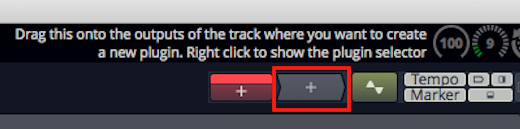
Right-click to Open the Visual Plugin Selector
📝 Note: If all you see are a lot of question marks, then read on; we will explain how to scan your plugins to capture thumbnails in a bit.
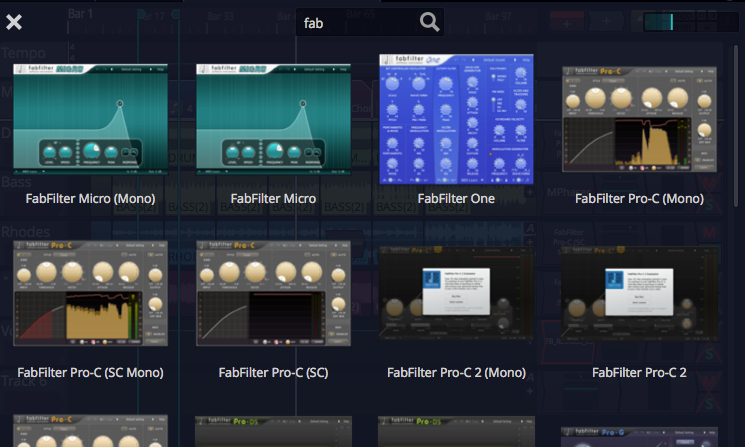
Visual Plugin Selector
From here you can scroll through all your plugins. When you find one you want to use, drag it and the window will close but continue dragging. Now drop it on a track in the normal way.
The Visual Plugin selector window offers just few controls to make finding the right plugin more simple.
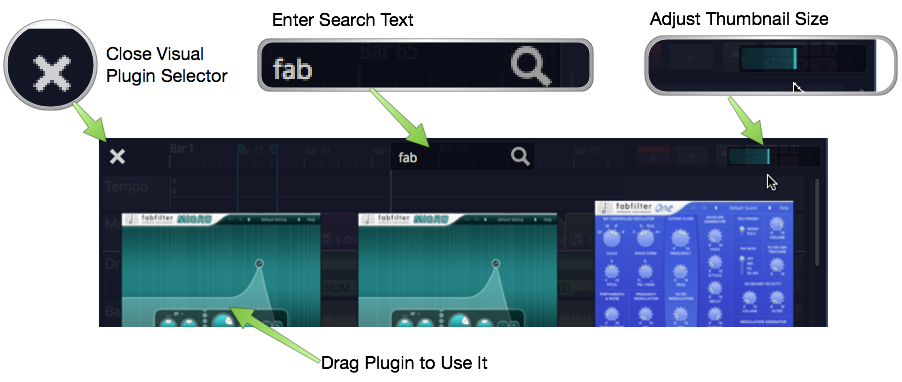
Visual Plugin Selector Controls
- After opening the Visual Plugin selector, start typing in search characters to filter the list.
- Adjust the size of the thumbnail images using the slider at the right.
- If you decide not to pick a plugin, click the X at the upper left or press ESC to close the window.
- As you drag a plugin, the window will close and you'll be dragging a transparent image of the plugin which you can drop wherever you want to use it.
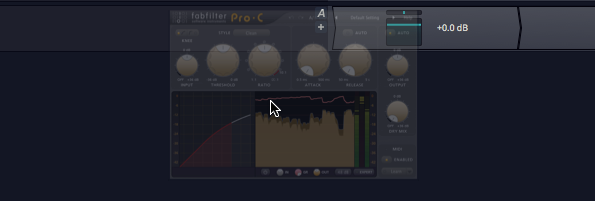
Dragging a Plugin
Determining Plugin Technology
As you over the mouse pointer over a thumbnail, an icon will appear in the upper left corner. This indicates which interface technology is used by that plugin: AU, VST, or VST3. This helps you pick from plugin thumbnails that otherwise look the same.

Audio Units Icon

VST Icon

VST3 Icon
These are the same icons are used in the Browser Search tab to differentiate the plugin technology.
Customizing the Thumbnail Image
Open any plugin in Waveform and notice the new camera icon in the upper right corner. Click that camera to take a snapshot of the plugin window and update the thumbnail image. If you want more interesting thumbnails, use this to capture the plugin in action with the meters moving or with an interesting EQ curve.

Customize a Plugin Thumbnail
Scanning to Capture Thumbnails
When you first start using Waveform, the Visual Plugin selector thumbnails appear as blank question marks. When you open a plugin for the first time, Waveform grabs the thumbnail image. Over time, the thumbnails will begin to fill in.
If you are you want all of them populated with images right away, you can! Locate the Scan for plugin thumbnails options on the Settings tab, Plugins page.
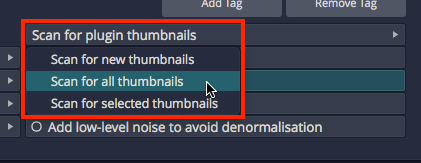
Capture Thumbnails Options
There are three options: You can scan all plugins, scan for new plugins (those without thumbnails), or scan from a selection in the list of installed plugins. When you first start with a new Waveform installation you probably want to use Scan for all plugins.
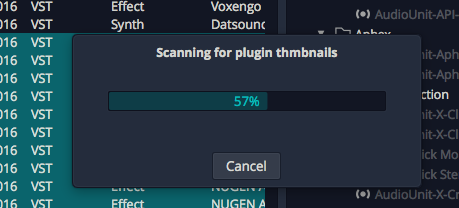
Thumbnail Scan Progress
Opening Visual Plugin Selector with a Shortcut
There is a new macro action to open the Visual Plugin selector. To use it create a new macro then right-click on the script editor on the Settings tab, Keyboard Shortcuts page. Navigate to Advanced Actions > Plugins > Show or hide the plugin selector page.

Action to Open the Selector
That adds the necessary code to the macro.

The Completed Macro
Assign a keyboard combination that makes sense. In this example, we have used Option + F11 / Alt + F11.