Stem Separation
Stem separation splits a mixed audio clip into its constituent parts — drums, vocals, bass, and other — using an on-device neural model. Reach for it when you want to isolate a vocal for a remix, pull out a drum loop, or turn a finished mix into an instrumental, all without the original multitrack.
The separation is powered by Demucs, Meta's open-source music source separation model. It runs entirely on your own machine as a bundled background process — nothing is uploaded and no internet connection is needed once the model is installed.
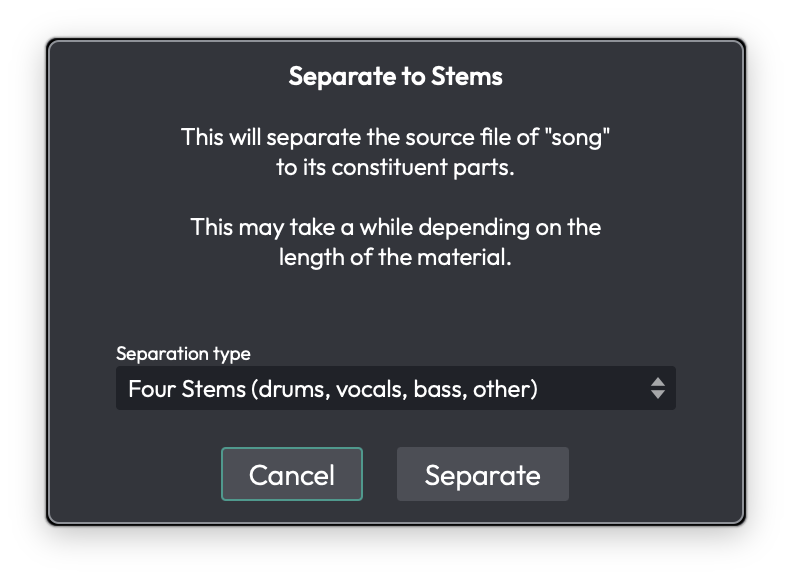 The Separate to Stems dialog
What You Need
Stem separation has three requirements, and all three must be in place before the feature will run:
-
Waveform Pro. The feature is gated behind
Feature::stemSeparationand isn't available in the Free or OEM editions. -
The DJ Mix Tools Expansion, unlocked on your account. Unlocking it is what switches the feature on.
- The "Stem Separation" feature pack — the downloaded Demucs model and its executable — installed in your Extensions folder. The model is large, so it ships as a separate download rather than inside the app.
If the DJ Mix Tools Expansion is unlocked but the feature pack hasn't been downloaded, the Split to stems menu item is still present, but choosing it shows the message "Unable to find the required feature pack — Please ensure this has been installed via the Downloads page or Download Manager and try again."
Getting the feature pack
Feature packs are fetched through Settings > Downloads (the Download
Manager). To check where they live or install one by hand, open
Settings > File Locations and look at the Feature Extensions
section: it shows the Extensions folder, lists the packs already
installed, and offers a Content pack button for installing a
.content or .zip file manually. See the Reference: Settings > File
Locations and Reference: Settings > Downloads chapters for details.
Separating a Clip
- Right-click a wave audio clip and choose Split to stems.
- The Separate to Stems dialog opens, warning that it "will separate
the source file of "
" to its constituent parts" and that "This may take a while depending on the length of the material." - Pick a Separation type from the dropdown:
- Four Stems (drums, vocals, bass, other) — the default; produces all four stems.
- Two Stems (extract drums) / (extract bass) / (extract vocals) / (extract other) — produces just the chosen stem plus its residual, e.g. Vocals and No Vocals.
- Click Separate.
If the clip's source isn't already a WAV, Waveform first converts it to a
temporary WAV ("Preparing for Stem Separation"). It then runs the
separation itself ("Separating Stems — Extracting stems from:
When it finishes, Waveform inserts one new audio track per stem
directly after the original track, named after the clip with the stem in
parentheses — <clip> (Drums), <clip> (Vocals), and so on. Each new
track holds a copy of the original clip remapped to its stem file, so the
stems stay lined up with the original. The stem WAVs are written into the
project's rendered-media folder.
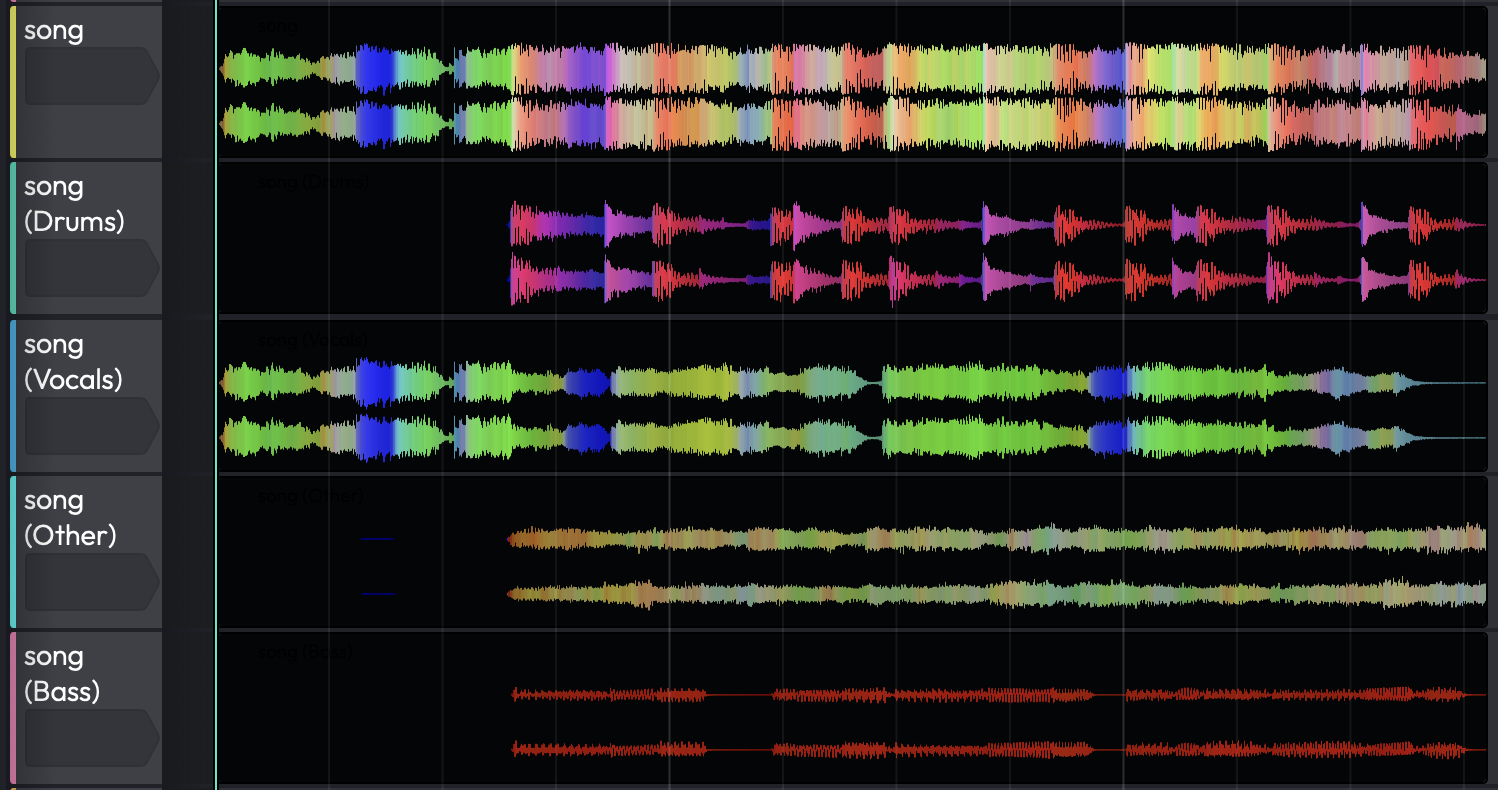 Stem tracks inserted beneath the original clip
The original clip and track are left untouched — the stems are added alongside them. Mute or delete the original yourself once you're happy with the result.
Things to Watch Out For
⚠️ Warning: Separation runs on the clip's whole source file, not the trimmed clip region. If you separate a short clip taken from a long recording, Demucs still processes the entire underlying file. Trim or consolidate the clip down first if you only want part of it.
📝 Note: If you've selected several clips, only the first one is separated. Run the command again for each clip you want to split.
📝 Note: Processing time scales with the length of the material — a full song can take a while. The progress dialog is cancellable at any point.
📝 Note: The stems are lossless WAVs, so they take up roughly the size of the original source file multiplied by the number of stems.
Moving On
Once you have your stems on their own tracks, they behave like any other audio — see Audio Clips and Editing Audio for trimming and editing, and Mixing Down for bouncing an isolated stem or instrumental back out to a file.