Pattern Generator
The Pattern Generator builds MIDI notes for you — arpeggios, chords, basslines, and melodies — directly inside any MIDI clip. It's a great way to sketch ideas quickly, follow your project's harmony, or get past a blank canvas. The notes it creates are real, editable MIDI; once they're generated you can tweak them like anything else you'd draw by hand.
This is available in all editions. The one exception is the Follow Chord Track key option, which needs Waveform Pro.
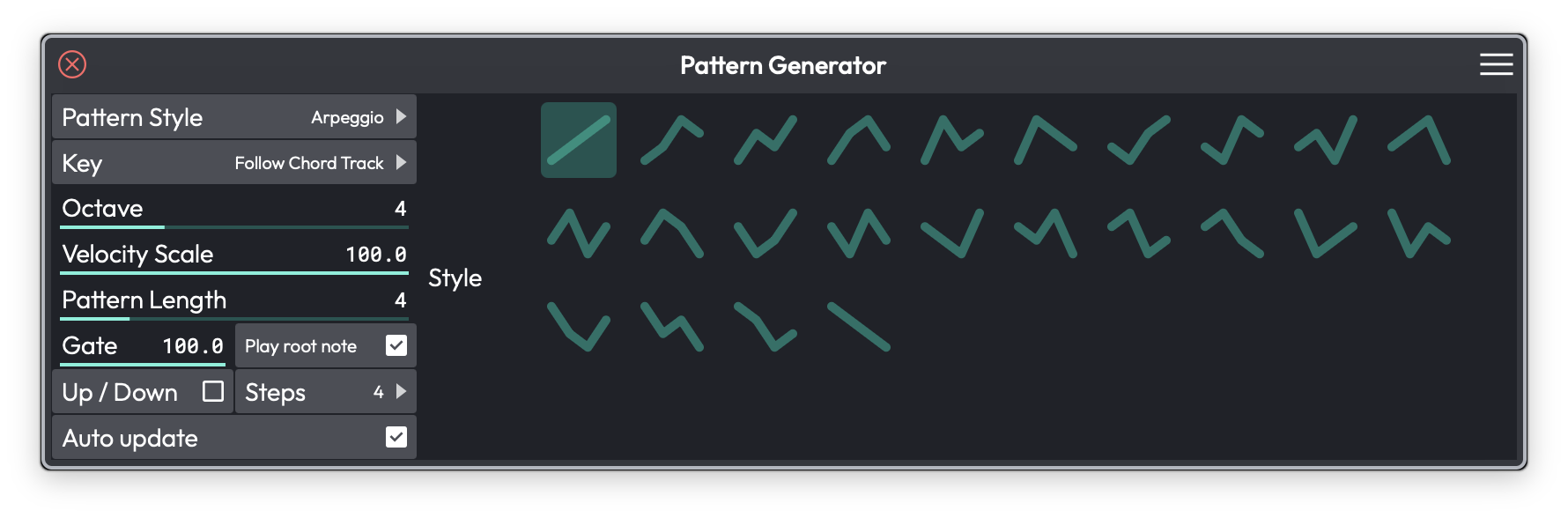
The Pattern Generator tab in a MIDI clip's properties
Opening the Pattern Generator
Select a MIDI clip, then open the Pattern Generator tab in properties. Everything happens in that one panel — there's no separate window.
Choosing a Pattern Type
The Type of pattern to generate menu sets what the generator produces. (Choices: None, Arpeggio, Chords, Bassline, Melody) (Default: None)
- None — Generation off. The clip keeps whatever notes are already in it.
- Arpeggio — Spreads the current chord into a stepped pattern.
- Chords — Lays the chords down as block chords.
- Bassline — Builds a single-note bass part from the progression.
- Melody — Generates a melodic line within the key.
When you pick a type, a set of controls appears below it. Some are shared by every type; others are specific to the mode you chose.
Shared Controls
These appear for every pattern type (except None).
Key — Where the generated notes get their pitch reference. (Choices: Follow Chord Track, Follow Global Track, or one of the twelve chromatic roots) (Default: Follow Global Track). Follow Chord Track ties the pattern to the harmony you've laid out on the Chord Track and needs Waveform Pro; Follow Global Track tracks the edit's global key.
Scale / Mode — The scale used when you've chosen a fixed root rather than following a track. (Only shown when Key is set to a specific root.)
Progression — A chord-progression builder shared with the Chord Track. Add chords (triads, 6ths, 7ths, 9ths, or custom), drop in popular 3- and 4-chord progressions, and save or load presets. A Suggestion predictor sits alongside it, showing likely next chords as a bar chart so you can build a progression a chord at a time. See the Chord Track chapter for the full walkthrough of this builder — it works the same way here.
Octave — Shifts the generated notes up or down by octaves.
Velocity — Sets the velocity of the generated notes.
Gate — How long each note plays relative to its step (shorter gates give a more staccato feel).
Auto Update — Regenerates the pattern automatically whenever you change a setting. (Default: on)
⚠️ Warning: With Auto Update on, regenerating the pattern overwrites any manual edits you've made to the notes. If you want to hand-tweak the result, turn Auto Update off first.
Arpeggio
In addition to the shared controls, Arpeggio adds:
- Style — A grid of arpeggio patterns to choose from.
- Pattern Length — How many steps before the pattern repeats.
- Play Root — Includes the chord's root note in the pattern.
- Up / Down — The direction the arpeggio travels.
- Steps — The number of steps in the pattern.
Chords
- Pattern style — How the chords are voiced and placed.
- Octave Up / Octave Down — Doubles the chord an octave above or below.
- Spread — Widens the spacing between the chord's notes.
Bassline
- Pattern style — The rhythmic and melodic shape of the bass part.
Melody
- Note Length — The length of the generated melody notes.
- Add all notes in key — Lets the melody use every note in the key rather than a restricted set.
- Randomise — Generates a fresh variation of the melody.
💡 Tip: The first time you use Melody mode you'll see a hint to paint notes in and out with the paint tool — you can steer which pitches the generator favours by drawing them in or erasing them.
⚡ Things to Watch Out For
- Auto Update overwrites your edits. This is the big one. If you've spent time refining the generated notes, turn Auto Update off before touching any other control.
- Follow Chord Track is Pro only. In Free and OEM editions you can still follow the global key or pick a fixed root — you just can't lock the pattern to the Chord Track's harmony.
- The generator only fills the selected clip. It works on one MIDI clip at a time, not across the whole edit.
Moving On
The Pattern Generator shares its Progression builder with the Chord Track, so the two work nicely together — set up your harmony on the Chord Track, then have each clip's generator follow it. See the Chord Track chapter for the progression builder in detail.