Clip Effects
In Chapters 29 through 31 we covered using effects plugins in a variety of ways. Now, we want to show you how to apply plugins to individual Audio clips. Let's get started.
Inserting Plugins on Clips
To insert a plugin on an Audio clip, drag the plugin from the Browser or the plugin object, and drop it onto the Audio clip. You'll notice that the plugin thumbnail appears in the lower right corner of the clip. You can add as many plugins as you'd like to create a chain of effects, all operating on that one clip.
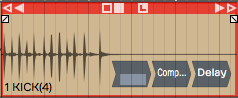
Plugins Using Clip Effects
📝 Note: Clip effects work with Audio clips, but not MIDI clips or Step clips.
The rest of the operation is pretty much the same as using plugins in the mixer. Select a plugin and hit F to enable or disable it. You can also enable or disable the effect with the Enabled button in properties.
For third-party plugins, clicking or double clicking on the plugin opens its user interface.
💡 Tip: How plugins open, depends on a setting in the Settings tab Plugins page: Opening Plugin Windows. It can be set to either Single-click on a plugin to open its GUI window or Double-click on a plugin to open its GUI window.
Removing Clip Plugins
To remove a plugin, simply click on the plugin and press Delete or Backspace. You can also select multiple plugins by holding down Cmd / Ctrl to select multiples, and then press Delete to remove them.
Creative Uses
One of the reasons to use clip effects is if you want to put an effect on just part of a track, even a single word or a single phrase. Without using clip effects, you'd need to move a piece of the clip to another track to apply a different type of an effect. This is really useful for something like an echo throw where you're applying an echo effect to a single word, or if you want to process one phrase of a vocal line with a lo-fi effect. Just separate the phrase or word to its own cli, then apply the effect only to that short clip.
Echo Throw Example
An echo throw is taking one word, usually the last word of a phrase and then applying an echo to it. Here are the steps:
- First, separate the final word of the phrase from the rest of the phrase. To do that position the cursor where you'd like to make the split and hit the slash (/) key.
- Now that clip is separated into its own clip, drag in the Delay plugin.
- Dial in the Delay parameter so it echoes out in a musically useful way, maybe using eighth notes or quarter notes. Add a little bit of Feedback so you get some echoes that die out over time.
- Playback and tweak the Delay parameters until you get the echo throw effect that you like.
Moving On
The same technique is great for lo-fi effects as well. Apply a high pass and a low pass filter in order to cut the highs and the lows, or even apply chorusing to a few words in a vocal line. Clip effects are super easy to use in Waveform, and they unlock all kinds of creative options!