Keyboard Shortcuts
In this chapter you will learn how to customize the keyboard shortcuts in Waveform. In Introduction we covered how to change the default keyboard mapping. In short, go to the Settings tab and select the Keyboard Shortcuts page. Then near the bottom of the page click Reset to Defaults, and choose Restore default Waveform key-mappings.
📝 Note: The default Waveform key-mapping is used for all examples in this book.
Keyboard Shortcuts Page
The Keyboard Shortcuts page on the Settings tab shows all of the key-mappings. You can easily change those to your liking or match them to a DAW you are already comfortable with.
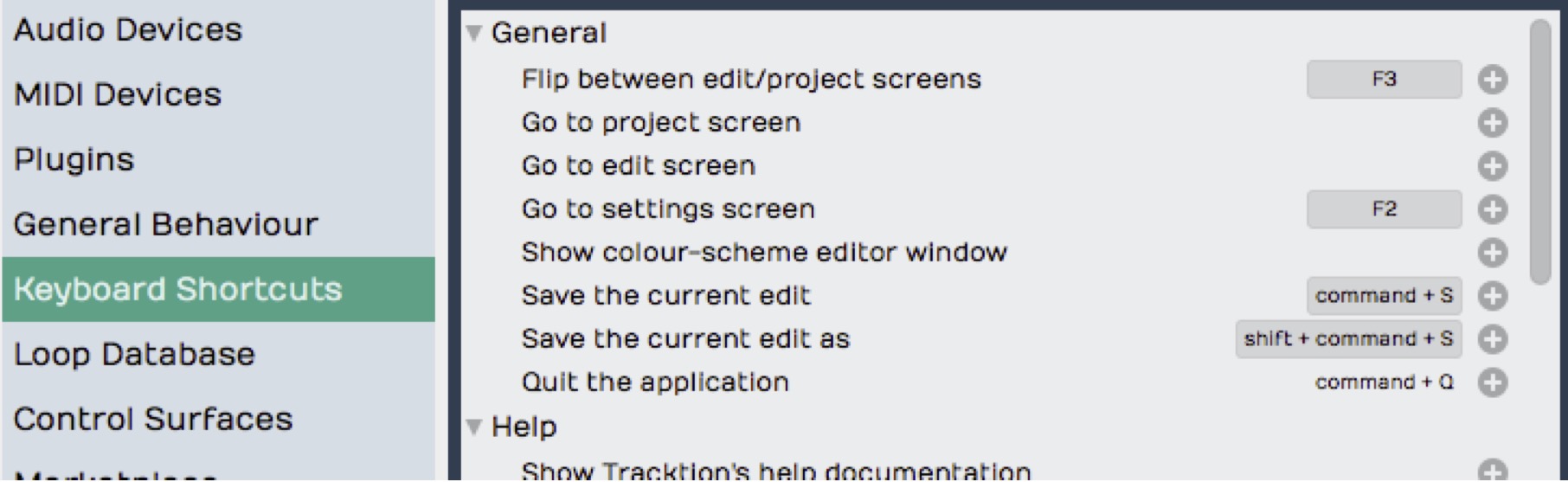
Keyboard Shortcuts Page on the Settings Tab
Waveform allows you to have more than one shortcut tied to a single action. This is really helpful if you want to have a way to do something on your laptop, but then take advantage of the extended keypad when you're working on a desktop computer.
Setting a Keyboard Shortcut
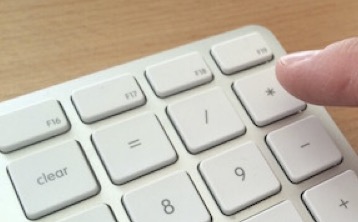
Map Record to the Asterisk on the Keypad
Let's take a look at an example. To start recording you click the Record button in the transport or press keyboard shortcut R. When working on a computer that has a full size keyboard, you may prefer to start recording by hitting the asterisk (*) key on the keypad. To do so:
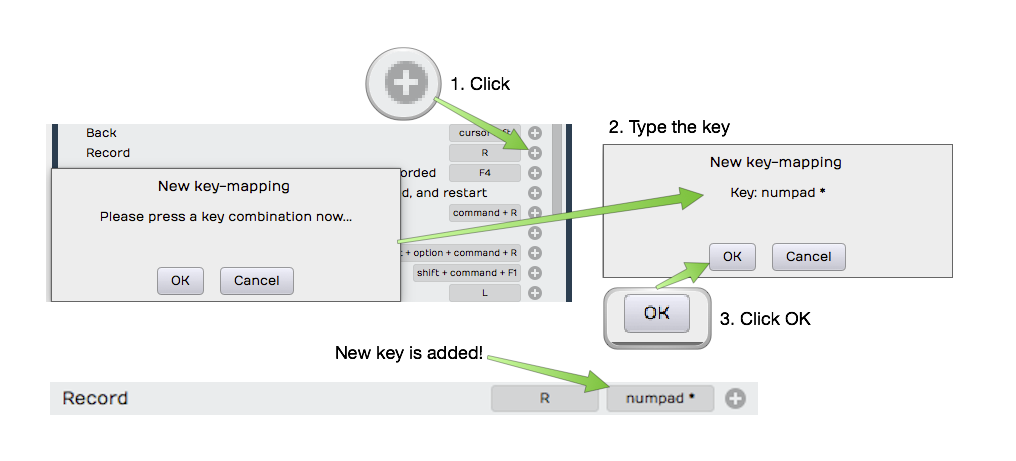
Setting a Keyboard Shortcut
- To the far right of each action there's a plus icon. To create or add a keyboard shortcut to an action, click the corresponding plus icon. The New Key-mapping dialogue box opens up.
- Type the key or key combination that you want to trigger this action. The key or key combination will be identified in the dialogue box and it will also show you if there's a conflict with an existing mapping. For our example, press asterisk (*) and then click OK.
Now, both R and the keypad asterisk () are assigned to the Record action. Back in the Edit test this by turning *Record on and off using either R or asterisk (*).
📝 Note: Keyboard mappings are global. Any changes you make will be active for all your Edits.
Changing a Keyboard Shortcut
To change an existing shortcut, click directly on the key-mapping at the far right of the action. Choose between Change this key-mapping and Remove this key-mapping. If you choose the Remove option, the key-mapping disappears. If you choose the Change option the New key-mapping dialog appears and you can enter a new assignment.
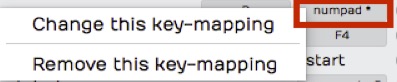
Click to Change or Remove a Key-mapping
Saving Keyboard Shortcuts to a File
Once you have your keyboard shortcuts set up the way you want, you can save the entire key-mapping to a file, a very good idea. If you run Waveform on a different computer, you can simply import the file, and will then have all your familiar assignments ready to go.

Save Key-Mappings Button
To save your shortcuts setup, click Save Key-Mappings and Waveform
presents a dialogue box requesting a file name and path. You can store
the key-mapping file anywhere you like. Waveform key-mapping files have
the .Tracktionkeys extension.
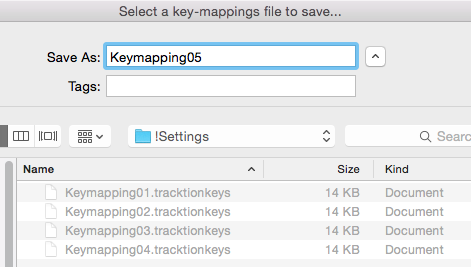
Save Key-Mappings Dialog Box
💡 Tip: You could create a 'settings' folder under your main Waveform folder to hold such files, naming the key-mapping files with a version number at the end. This gives you the ability to easily roll back to a previous version if you ever change your mind about a new keyboard layout.
Loading Keyboard Shortcuts from a File
If you're working on a new installation or move to a new computer you can load your custom key-mapping file. Go to the Keyboard Shortcuts page on the Settings tab and click Load Key-Mappings. Find your exported key-mapping file then click Open. All your key-mappings are restored.

Load Key-Mappings Button
Printing a List of Keyboard Shortcuts
If you want to print a list of all your current keyboard shortcuts, click View as HTML at the bottom of the Keyboard Shortcuts page. This loads a nicely formatted, searchable view of all the current key-mappings into your browser. From there you can search it or print it using normal web browser features.

View as HTML Button
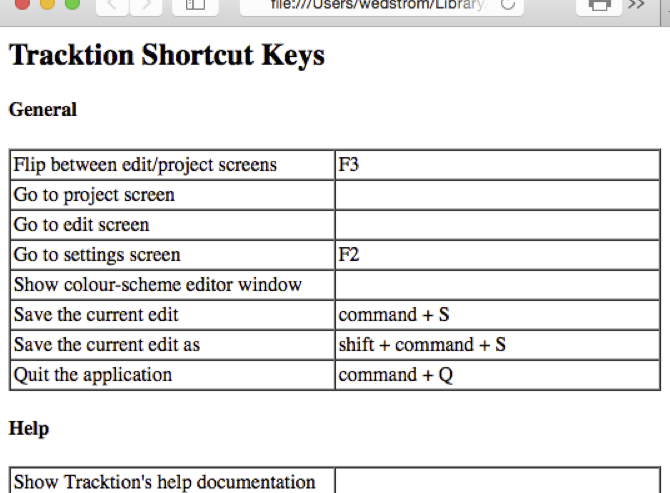
HTML View of the Keyboard Shortcuts List
Moving On
At this point you should have a good handle on how to customize the keyboard shortcuts in Waveform. Since T6, Waveform offers powerful macro scripting you can use to further customize keyboard shortcuts. For more about that, see Macros.