Demo Projects and Templates
This chapter shows you how to get started with ready-made content. Demo projects and templates are very useful because they give you something to experiment with, as you learn the basics of the application.
Establish a Waveform Projects Folder
It's a good idea decide where you want to keep your Waveform projects on your system.
One method would be to create a Waveform folder, under the Documents folder on your system. So, decide on a location and create your Waveform folder using the Finder (macOS) or File Explorer (Windows).
Starting From a Template
The quickest way to get something playable is to start from one of the built-in templates. These include demo songs as well as ready-to-use starting points for new projects.
Open the Welcome tab and look at the Templates list. Each entry is a complete project you can open with a single click.
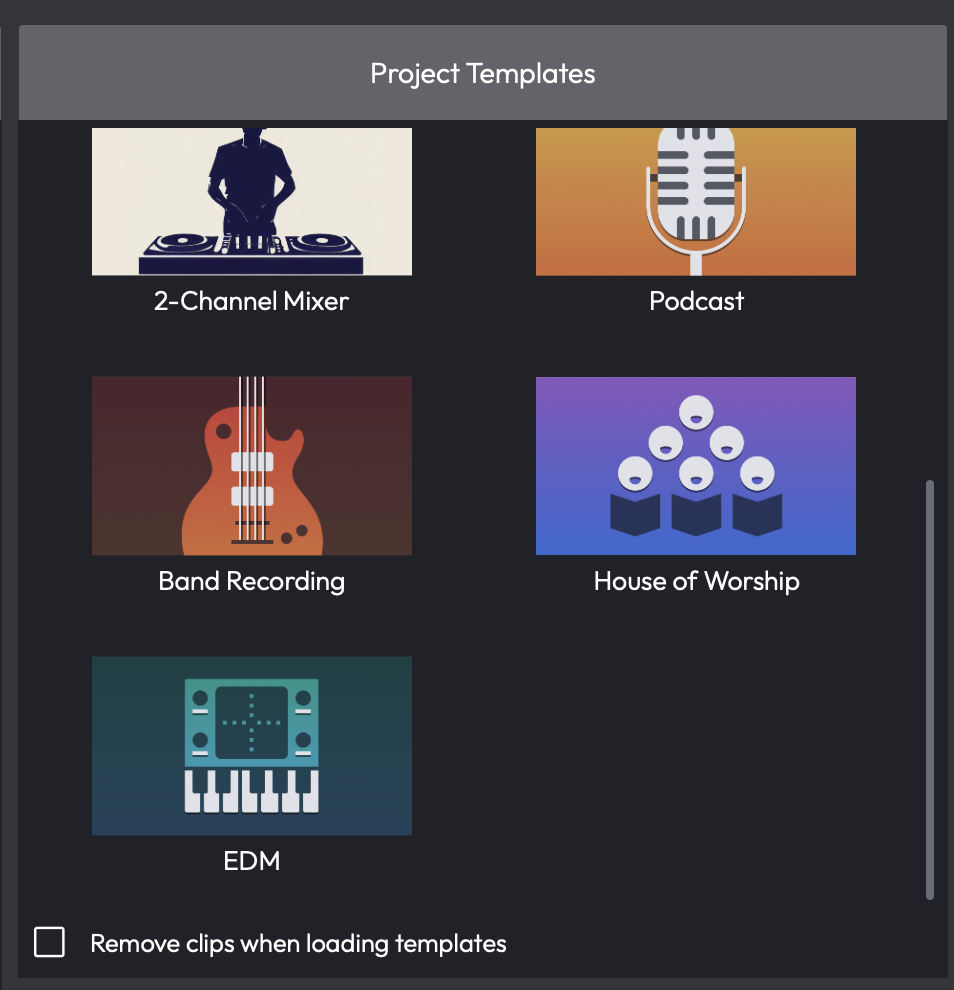
The Templates List in the Welcome Tab
Click a template to create a new project from it. Waveform copies the template into your Active Projects and opens the new Edit, leaving the original template untouched so you can reuse it as often as you like.
💡 Tip: If you'd rather keep the template's track and plugin layout but start with an empty arrangement, enable Remove clips when loading templates before you click. This opens the project with its routing in place but no clips on the tracks.
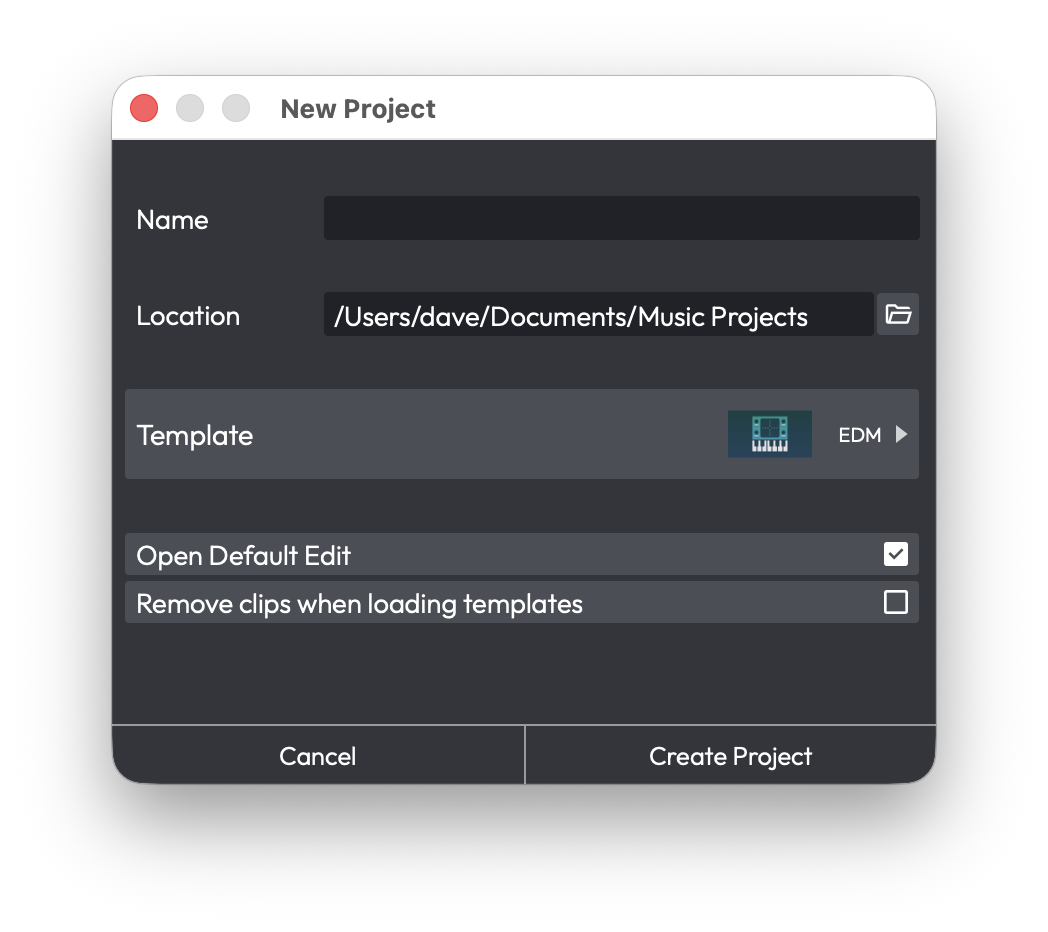
A New Project Created From a Template
Demo Songs in Your Projects
Any demo songs bundled with your installation are added to your projects automatically the first time you run Waveform - there's nothing to download. They appear in the Projects tab alongside your own work.
💡 Tip: We like to reorganize the demos into a folder to keep them separate from our own projects.
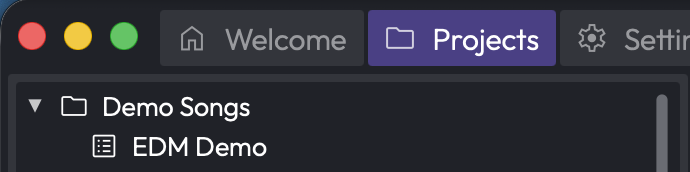
Demo Songs Collected in a Project Folder
Moving On
With Waveform installed, and a few projects ready to play with, it's time to move on to configuring your audio interface.