Layouts
📝 Note: Layouts are a Waveform Pro 11 and later feature. They are not available in Waveform Free or in Waveform Pro 10. Where the feature is unavailable the Layout button is hidden and the save/load commands do nothing.
A layout saves the way the Edit window is arranged — which panels are showing, how big they are, and whether they are docked or floating — as a named preset you can recall in a single click. Set the window up the way you like for tracking, save it, then build a mixing layout with the Mixer enlarged and the Browser hidden, and flip between them instantly instead of dragging panels around by hand.
Layouts only ever touch the appearance of the window. They never change your audio, MIDI, clips, plugins, or any other project data.
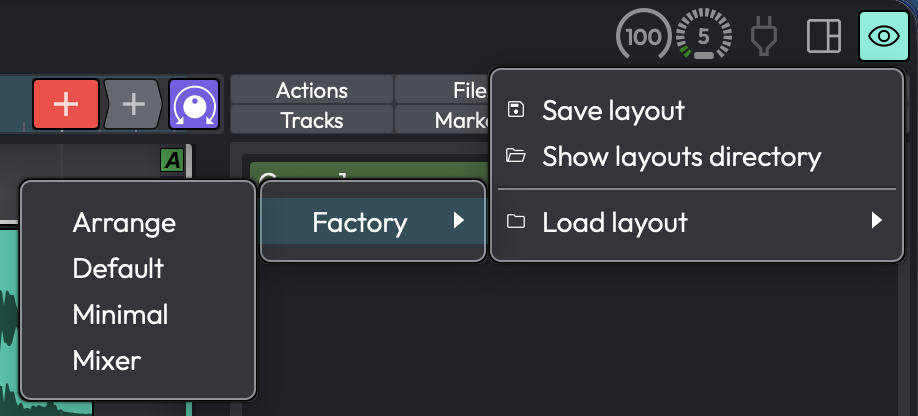
The Layout menu
What a Layout Stores
A layout captures the state of the arrangement window's panels:
- The visibility, size, and docked/floating state of the Overview, MIDI editor, Mixer, Arrangement, and side panel, the global tracks (tempo, arranger, chord), the control/input/plugin strips, and the Quick Action bar and window.
- The active side-panel tab and the marker-track mode.
- The mixer strip layout — track width, big/small meters, and which mixer sections (inputs, modifiers, overview, clips, plugins, outputs, levels) are shown.
📝 Note: A layout does not store the arrange zoom level, per-track visibility, track heights, the playhead position, or the open/floating state of the Actions panel. Recalling a layout rearranges the panels; it leaves your view of the tracks themselves as it was.
📝 Note: Layouts are global (application-wide), not saved inside a project. The same set of layouts is available in every edit, and applying one to the current edit has no effect on other edits you have open.
Saving and Loading Layouts
The Layout button — the dashboard icon in the Edit-tab header — opens a menu with everything you need:
| Item | What it does |
|---|---|
| Save layout | Saves the current window arrangement as a named layout. |
| Show layouts directory | Opens the folder that holds your layout files in Finder/Explorer. |
| Load layout | A submenu listing your saved layouts, plus a Factory submenu of the shipped ones. Click one to apply it. |
When you choose Save layout a dialog titled "Save Preset" appears, prompting "Enter a name for the preset:" with the current edit's name filled in. Type a name and click Save. If a layout with that name already exists, Waveform asks "A preset with this name already exists, do you want to overwrite it?" with Overwrite and Cancel buttons.
💡 Tip: You can also open an edit straight into a chosen layout from the project list. Each project row has a template button (the eye icon) — click it and pick a layout, and the edit opens with that layout already applied. The neighbouring buttons open the edit with the default or Mixer layout.
If you prefer keyboard shortcuts, the commands "Show the save view state dialog" and "Show the view state menu" can be bound from Settings > Keyboard Shortcuts; neither has a default shortcut.
Factory Layouts
Waveform ships with four ready-made layouts under the Factory submenu of Load layout:
- Default
- Arrange
- Mixer
- Minimal
These are reinstalled automatically the next time you launch Waveform if any are missing, but an existing factory file is never overwritten.
Managing Layouts
There is no in-app way to rename or delete a layout. Use Show layouts directory to open the folder of
saved layouts and manage the .view files directly in Finder/Explorer — rename or delete them there.
Any subfolders you create become submenus in the Load layout list, which is handy for keeping sets of
layouts organised.