Track Snapshots
📝 Note: Track Snapshots are a Waveform Pro feature. They are not available in Waveform Free or OEM editions, where the menu item appears greyed out as "Feature unavailable".
A Track Snapshot saves the current arrangement of clips on a single audio track so you can try out a different arrangement and instantly recall the saved one. It is an A/B tool for arrangement work: lay down a verse one way, snapshot it, rearrange the clips, and flip back and forth between the versions until you are happy.
📝 Note: A snapshot captures the track's clips only — their positions, lengths, and clip-level settings. It does not store plugins, fader, pan, mute/solo, sends, or automation. Recalling a snapshot changes which clips sit on the track; it leaves the channel strip and plugins untouched.
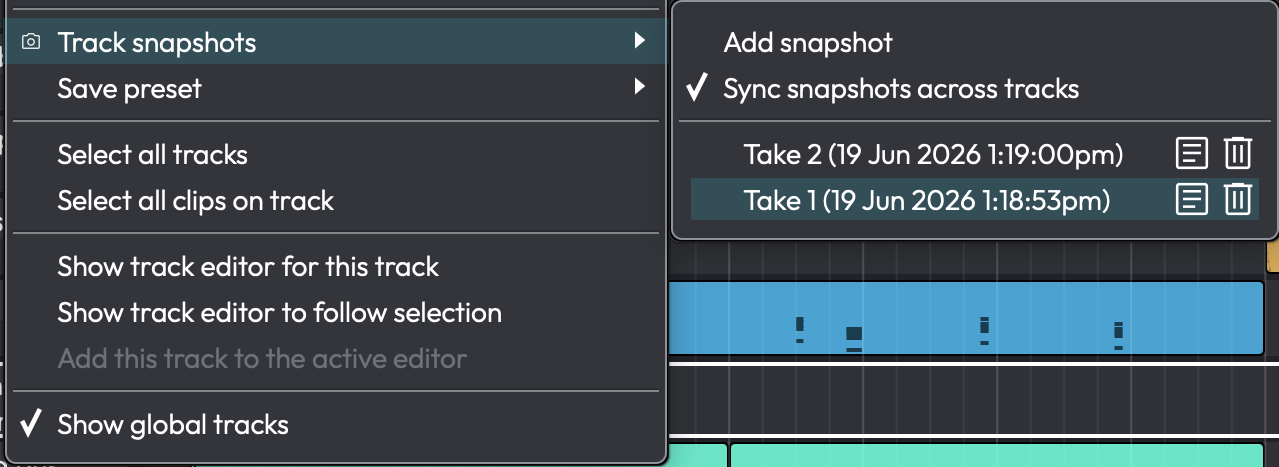
The Track snapshots menu
Opening the Snapshots Menu
Track Snapshots are available on audio tracks only — you will not see them on folder, submix, tempo, or chord tracks. There are two ways in:
- Right-click the track and choose Track snapshots (camera icon) to open the submenu.
- Open the track inspector and click the Track Snapshots button.
You can also bind the commands "Show track snapshots menu" and "Add track snapshot" to keyboard shortcuts from Settings > Keyboard Shortcuts; neither has a default shortcut.
Taking a Snapshot
Choose Add snapshot from the menu. A dialog titled "New Snapshot Name" appears with a default name; type a name and confirm to add the snapshot to the top of the list. Each snapshot is stamped with the real-world date and time it was taken, shown in brackets beside its name so you can tell versions apart at a glance.
There is no limit on the number of snapshots a track can hold, and they are saved inside the project, so they travel with the edit.
Recalling, Renaming, and Deleting
The menu lists every snapshot on the track, newest first. If there are none, it shows a greyed "No snapshots created" line.
| Action | How |
|---|---|
| Recall a snapshot | Click its row in the list. The track's current clips are removed and the stored clips are reinstated. |
| Rename a snapshot | Click the pencil icon on the row ("Rename snapshot"). |
| Delete a snapshot | Click the trash icon on the row ("Delete snapshot"). |
⚠️ Warning: Recalling a snapshot replaces all clips currently on the track. There is no confirmation prompt, so anything you have not snapshotted will be swapped out. The action is undoable through the edit's normal Undo (Ctrl/⌘+Z) if you change your mind.
📝 Note: Deleting a snapshot is immediate and is not confirmed.
Syncing Snapshots Across Tracks
At the top of the menu is Sync snapshots across tracks, a toggle that is on by default. This is a global preference — it carries between projects, not just the current edit.
- On — adding, recalling, renaming, or deleting a snapshot acts on every track that shares that snapshot's timestamp, and on any tracks linked through an enabled Edit Mix Group. This lets you snapshot and recall a whole arrangement — several tracks at once — as a single operation.
- Off — every snapshot operation affects only the one track you clicked on.
💡 Tip: Use Sync snapshots across tracks when you want to A/B a multi-track section (for example all of your drum tracks together). Turn it off when you want to experiment with a single track in isolation without disturbing the others.
For more on grouping tracks so that operations apply across them, see the Edit Mix Groups chapter.