Quantizing MIDI Notes
The idea of quantizing is to correct the timing your MIDI performances. At a basic level, quantizing snaps each note to the nearest correct note on a virtual grid defined by the bars and beats of your song. Waveform gives you tools to define that grid in musical increments like quarter note, eighth note, but it does so using divisions of a beat.
Waveform takes quantizing further with groove templates. Groove templates allow you to quantize in a way that's not perfectly aligned to straight timing. An important use of this is to introduce musical swing to the timing. You have all the tools needed to impart the desired feel into your performance.
How to Quantize
Within a MIDI clip, select all the notes you want to quantize. If you want to quantize all of them, you can use select all (Cmd + A / Ctrl + A). The quantize actions are available by clicking Quantize in properties.
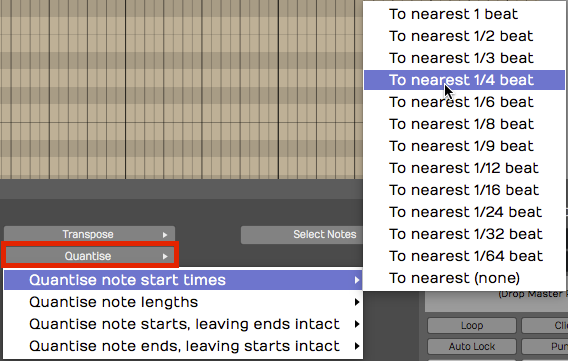
MIDI Quantize Actions
There are four different quantize actions available, as shown above. The most common option is the first one - Quantize note start times. To complete the action, you pick which beat division to use.
The beat division selection can be a little confusing. Musical divisions in Waveform are represented as fractions of one beat. For example, if you want to quantize to eighth notes and you're in 4/4 time, then you select To nearest 1/2. One half of one beat would be an eighth note. If you want to quantize to sixteenth notes, then select To nearest 1/4 beat from this menu.
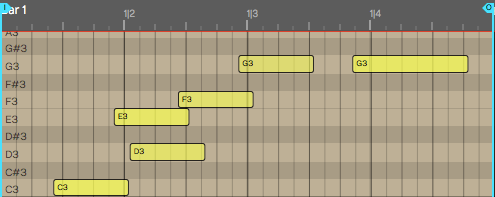
MIDI Notes Before Quantizing
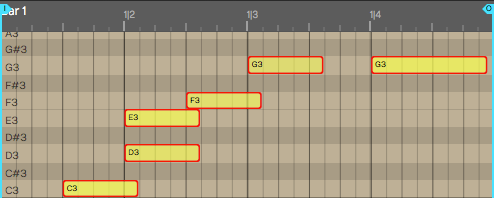
MIDI Notes After Quantizing Note Starts to Nearest 1/2 Beat
You'll will notice right away that quantizing perfectly tightens up up the performance. It will snap the notes to the nearest increment of the division that you selected.
📝 Note: If you're playing was so far off that it actually snaps it to the wrong note, then you might need to do some MIDI editing to clean that up!
💡 Tip: Some styles of music are based on perfectly quantized timing while other styles aren't. To get a more natural feel but also fix timing errors, you can always edit timing note-by-note manually with Snap turned off. Groove quantizing also gives you other options for "quantizing with feel". More on that later.
Quantizing Note Lengths
If you choose the option to quantize the note lengths you'll see that the notes become the full length of that particular note value.
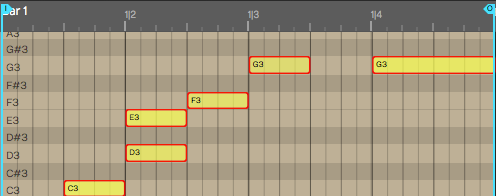
Note Lengths Quantized to 1/2 beat
With something like a piano part, this can lead to a choppy, unnatural feel. You could try quantizing the note lengths to 1/4 beat (sixteenth note) if the playing is that inconsistent.
In most cases, it's not really important to quantize the note lengths. It can be useful for things like quantizing the note lengths on drum parts, because it helps play out the full attack and decay of a drum hit.
Quantizing with Groove
Next let's look at how to quantize with groove. This feature can be as simple a choosing a preset, or as complex as finely programming a groove template. Groove can be applied to both MIDI clips and Step clips, which we will cover in the next chapter.
First lets look at the basics:
Select the notes to quantize and click Apply Groove in properties.
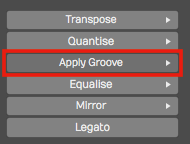
Apply Groove in properties
You will then get a large menu of groove presets. These are custom templates that allow you to apply fine adjustments to the timing.
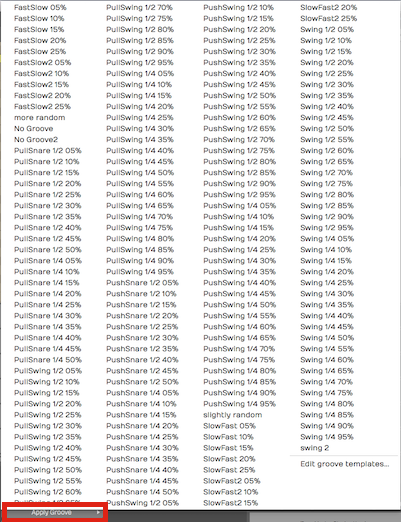
Apply Groove Presets in Options
The most common scenario is to apply swing: Delaying the eighth notes that follow the four primary beats in a bar. To locate the groove templates for standard swing, look at those starting with Swing 1/2. Swing 1/2 as in half beat. In normal musical terms, that's eighth note swing. To apply a nice groovy swing, try Swing 1/2 60%.
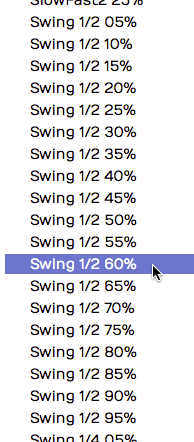
Groove Presets for Swing
📝 Note: In 4/4 music, eighth note timing is counted 1 & 2 & 3 & 4 &. In swing timing, the "&" beats are delayed. The swing presets in Waveform let you pick how much delay as a percentage from subtle (10%) to dramatic (90%).
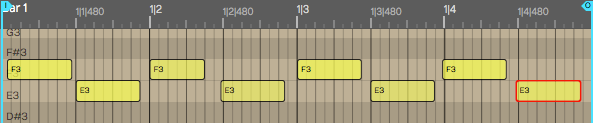
Before Applying Groove
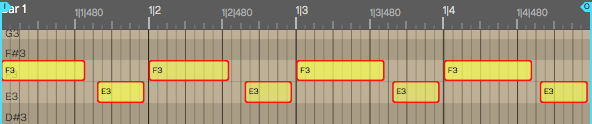
After Applying Groove - Swing 1/2 60%
After you apply swing, you'll see it lays back all of the "and" notes to be a little late; groovy! Waveform will also adjust the note lengths appropriately as shown above.
Defining Groove Templates
To take groove to the next level, you can build grooves to your own definition using the Groove Template Editor. At the bottom of the Apply Groove menu, you'll find Edit groove templates. This is also available in the Menu section under Snapping > Edit Groove Templates.
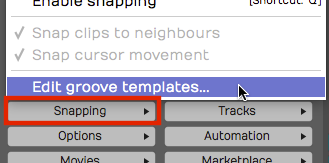
Snapping > Edit groove templates
Select this to open the groove template editor. Click on any of the presets to see how the logic works.
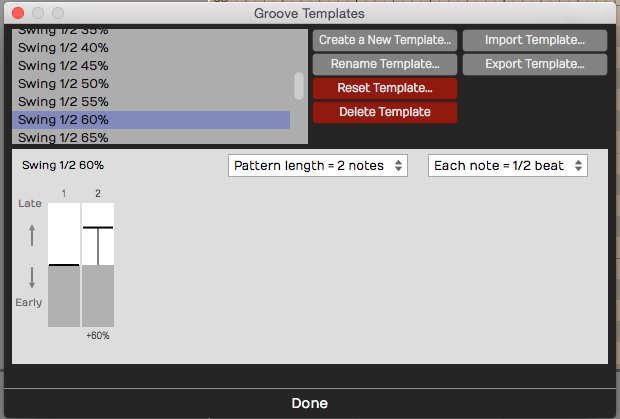
Groove Template Editor
In the image above, we have selected the Swing 1/4 60% template we used for the examples in this chapter. A groove template consists of a pattern length, note subdivision, and the timing for each note. For each step of the pattern, you choose the amount that that note falls 'early' or 'late' relative to perfect timing.
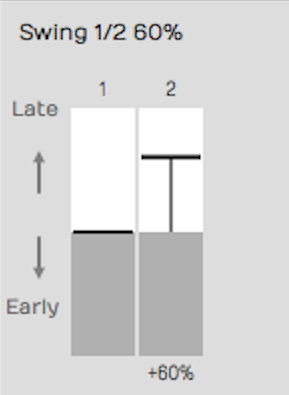
Swing 1/2 60% Template Example
The example in the figure shown above is the setup for a basic swing beat, with each 'and' eighth-note delayed. You can adjust the intensity of the swing feel by how much delay you put on the eighth notes.
Complex Groove Templates
Since you can create groove templates with as many steps as you want, you can dial in exactly the feel you want. For example if you want to vary the swing within the bar of music, you could create a template with eight notes with each swing element slightly different.
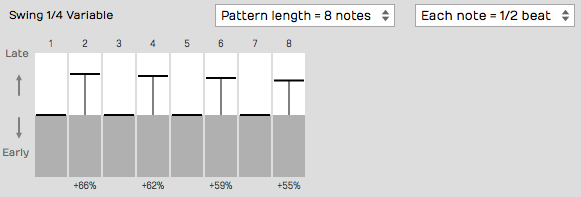
Groove Template with Variable Swing
Alternatively, you can create a groove that pushes the timing over two bars, which will give excitement and tension like the FastSlow2 preset.
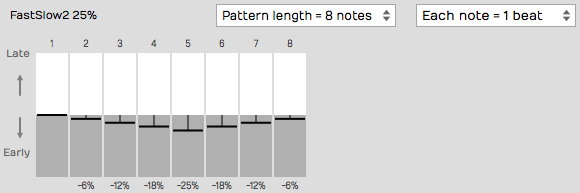
FastSlow2 Groove Template
💡 Tip: It can also be useful to create a 'No Groove' template to help you remove the effect of groove. This is particularly useful when applying groove templates to Step clips; more on that in the next chapter!
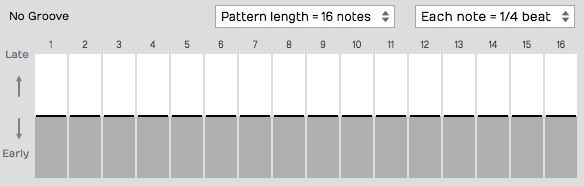
Creating a 'No Groove' Template
Managing Groove Templates
Waveform gives you all the tools you need to create new groove
templates, rename them, and import and export them. Exported templates
have the .trkgroove file extension. This allows you to share them with
other Waveform users or installations.
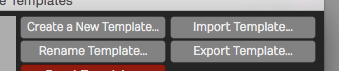
Create, Rename, Import, or Export Groove Templates
While editing a groove template, you may reset it. This removes the late/early timing for the pattern, but doesn't change the length or note division settings.
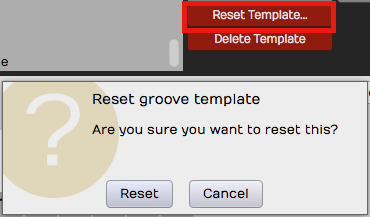
Resetting a Groove Template
Any groove template that you don't need, you can delete using Delete Template.
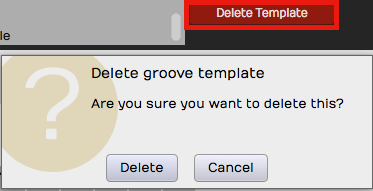
Deleting a Groove Template
Moving On
You should now have a pretty good understanding of MIDI, MIDI recording, MIDI editing, and even quantizing with MIDI. But there is one more thing: Step clips. And that is up next!