Visual Plugin Selector
The Visual Plugin selector shows your plugins as thumbnail images, so you can pick one by how it looks. It opens from the Plugin object on each track, the button with the tooltip Add new plugin.
Using the Visual Plugin Selector
To open the Visual Plugin selector, right-click the Plugin object, or hold any modifier key while you click it. It shows each of your plugins as a thumbnail image with its name. A plain click opens whichever selector Plugin selector in Settings > Plugins is set to (see Plugin View Options).
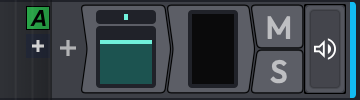
Right-click to Open the Visual Plugin Selector
📝 Note: If you see mostly question marks, the thumbnails haven't been captured yet. See Scanning to Capture Thumbnails.
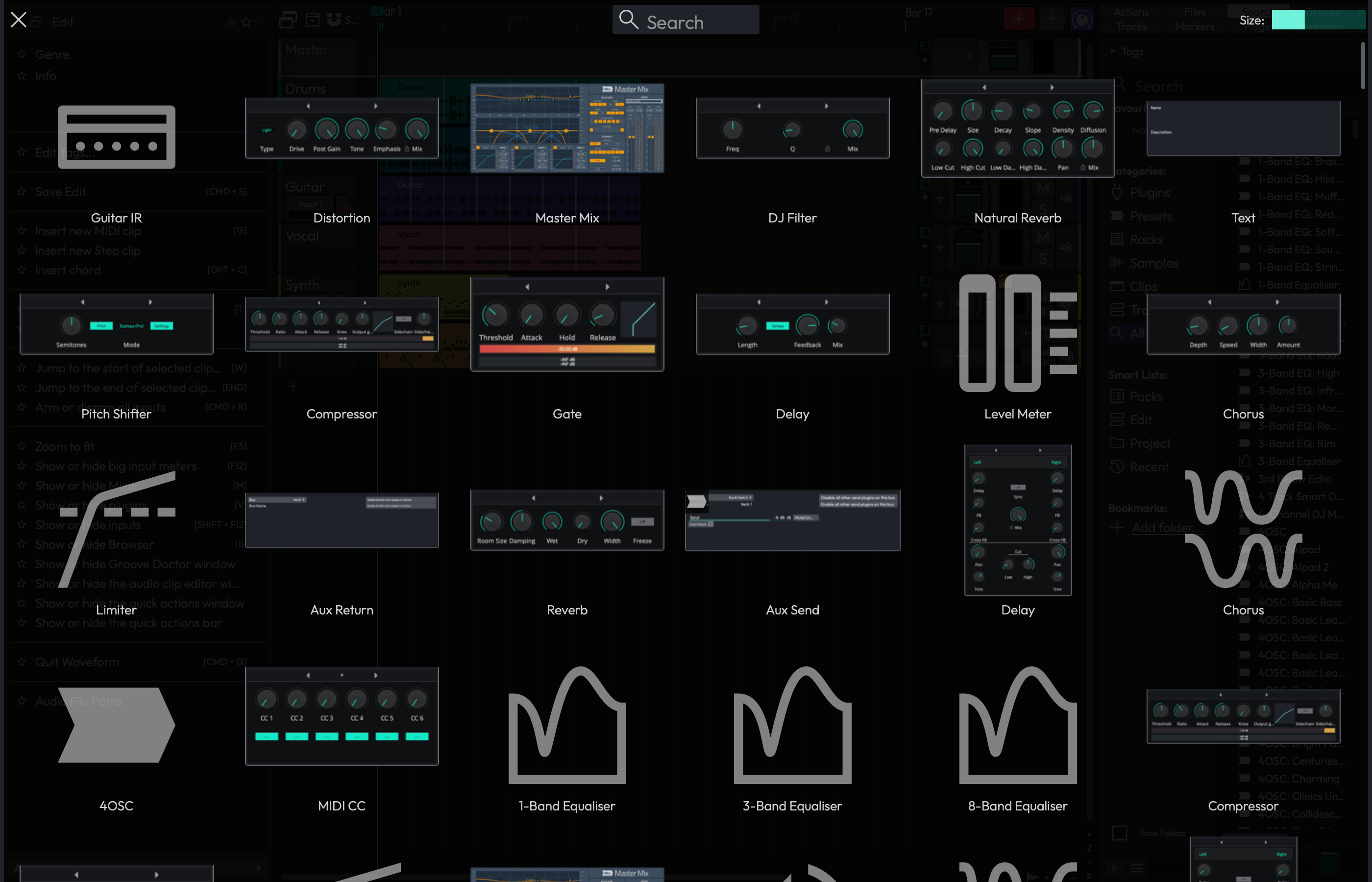
Visual Plugin Selector
Scroll through your plugins, and when you find the one you want, drag it. The window closes while you keep dragging, so you can drop the plugin on a track in the normal way.
The Visual Plugin selector has a few controls to help you find the right plugin:
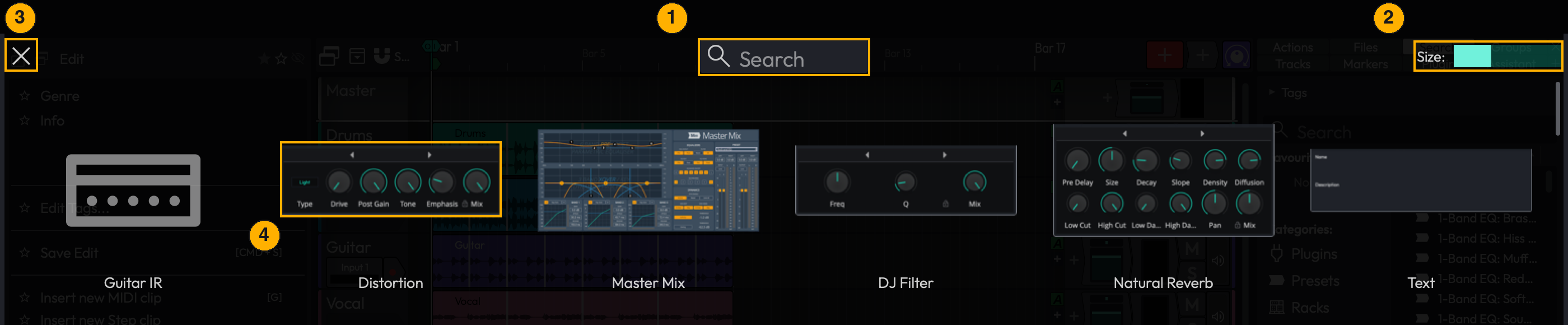
Visual Plugin Selector Controls
- Start typing to filter the list.
- Adjust the size of the thumbnail images using the slider at the right.
- If you decide not to pick a plugin, click the X at the upper left or press Esc to close the window.
- Drag a plugin out of the window. The window closes and you drag a transparent image of the plugin, which you can drop wherever you want to use it.
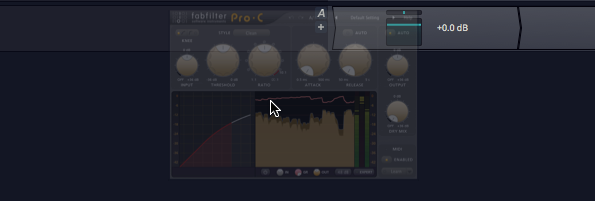
Dragging a Plugin
Determining Plugin Technology
When you hover the pointer over a thumbnail, an icon appears in its upper left corner showing the plugin's format: AU, VST, or VST3. This helps you tell apart thumbnails that otherwise look the same.

Audio Units Icon

VST Icon

VST3 Icon
The Browser's Search tab uses the same icons to show the plugin format.
Customising the Thumbnail Image
Each plugin window in Waveform has a camera icon (Save thumbnail image of plugin UI) in the upper right corner (macOS and Windows). Click it to take a snapshot of the plugin window and update the thumbnail image. For more interesting thumbnails, capture the plugin in action, with the meters moving or an interesting EQ curve.
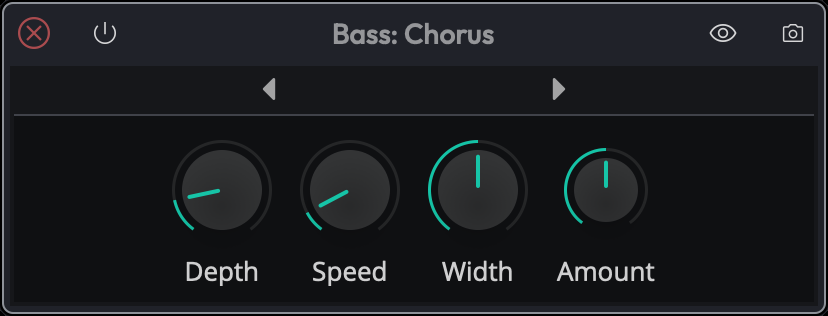
Customise a Plugin Thumbnail
Scanning to Capture Thumbnails
When you first start using Waveform, the Visual Plugin selector thumbnails appear as blank question marks. Waveform captures a plugin's thumbnail the first time you open it, so the thumbnails fill in over time.
To fill in every thumbnail at once, open Settings > Plugins, find the Plugin thumbnail images row and click its Create button.

Capture Thumbnails Options
The menu has three options: For all plugins, For plugins without thumbnails, or For selected plugins (the ones selected in the list of installed plugins). On a new Waveform installation, For all plugins is usually the one to use.
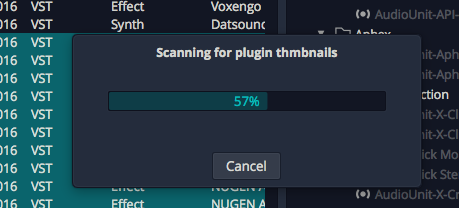
Thumbnail Scan Progress
Opening Visual Plugin Selector with a Shortcut
A macro action opens the Visual Plugin selector. To use it, create a new macro, right-click in the script editor in Settings > Keyboard Shortcuts, and choose Advanced actions > Plugins > Show or hide the plugin selector page.

Action to Open the Selector
This adds the code to the macro.

The Completed Macro
Then assign the macro a keyboard shortcut. This example uses Opt + F11 / Alt + F11, which is the default shortcut for Lock/Unlock Actions panel, so pick a free key combination instead if you want to keep that shortcut.