Keyboard Shortcuts
This chapter shows you how to customise Waveform's keyboard shortcuts. To go back to the default mapping, as described in the Introduction, open Settings > Keyboard Shortcuts, click Reset to Defaults near the bottom of the page, and choose Restore default Waveform key mappings.
📝 Note: The default Waveform key-mapping is used for all examples in this book.
Keyboard Shortcuts Page
The Keyboard Shortcuts page on the Settings tab shows all of the key-mappings. You can change them to suit the way you work, or to match a DAW you already know.
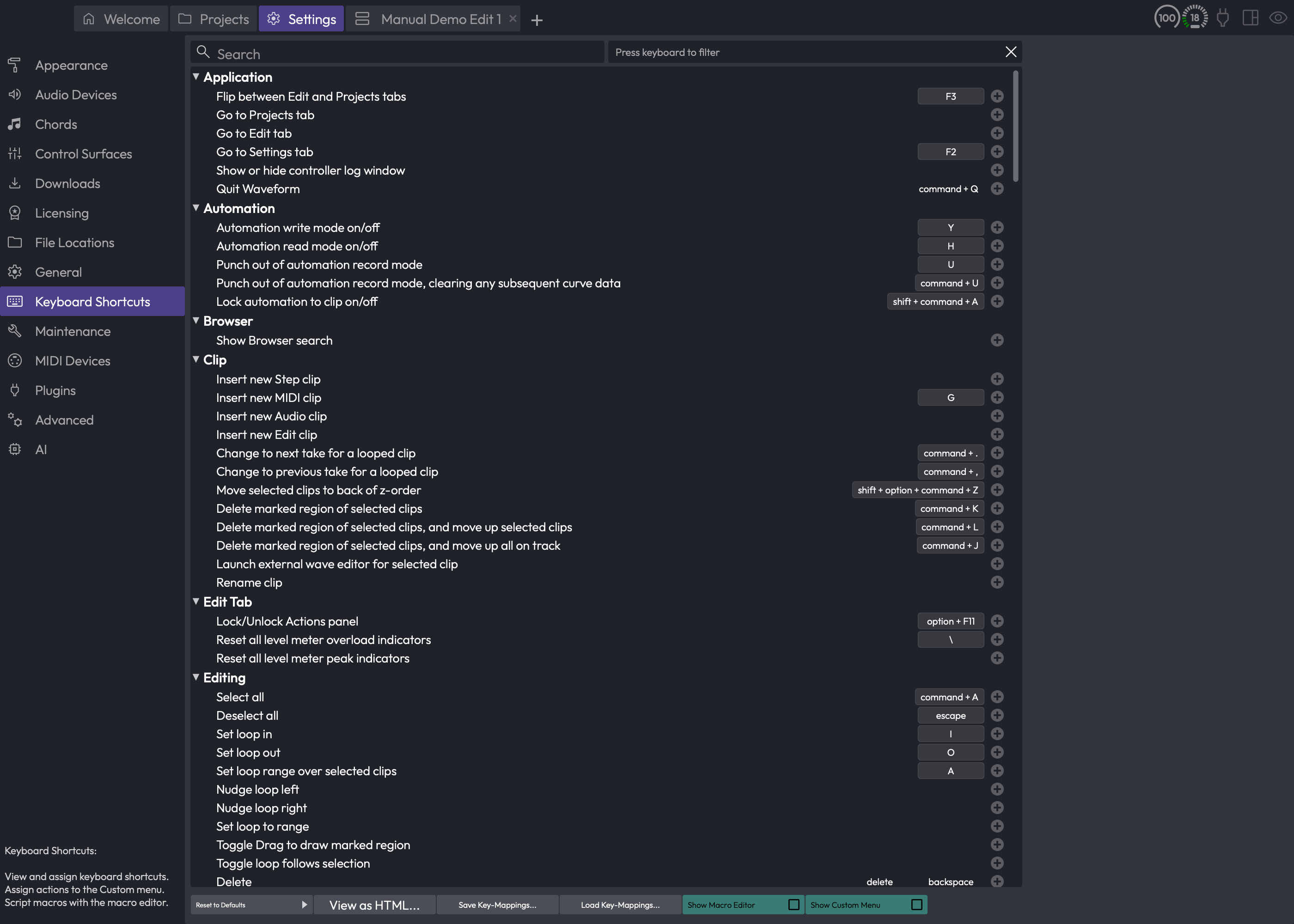
Keyboard Shortcuts Page on the Settings Tab
An action can have more than one shortcut. For example, you can use one key on a laptop and a keypad key when you're working at a desktop computer with an extended keyboard.
Finding a Shortcut
Type in the page's search box to filter the list. It matches the names, descriptions and categories of the commands. To find out what a key does, click the Press keyboard to filter box and press the key: the list then shows only the command mapped to it.
Using Another DAW's Shortcuts
Reset to Defaults loads a complete set of key mappings. As well as Restore default Waveform key mappings, its menu offers Clear all mappings, Use legacy Tracktion key-mappings, Use 'Ableton Live' style key-mappings and Use 'Cubase' style key-mappings. Each one asks you to confirm, because it overwrites all your current key mappings, so save them to a file first (see below) if you might want them back.
Setting a Keyboard Shortcut
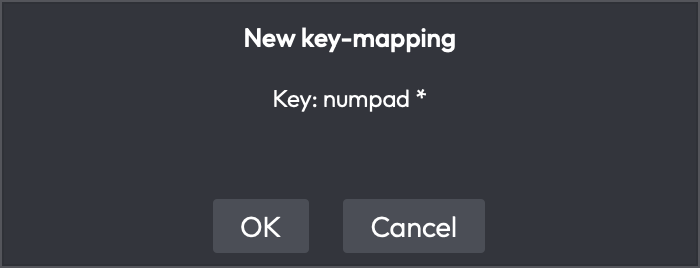
Map Record to the Asterisk on the Keypad
For example, to start recording you click the Record button in the transport bar or press R. On a full-size keyboard, you might prefer to start recording with the asterisk (*) key on the keypad. To set this up on a Mac (on Windows, the asterisk is already a default Record key):
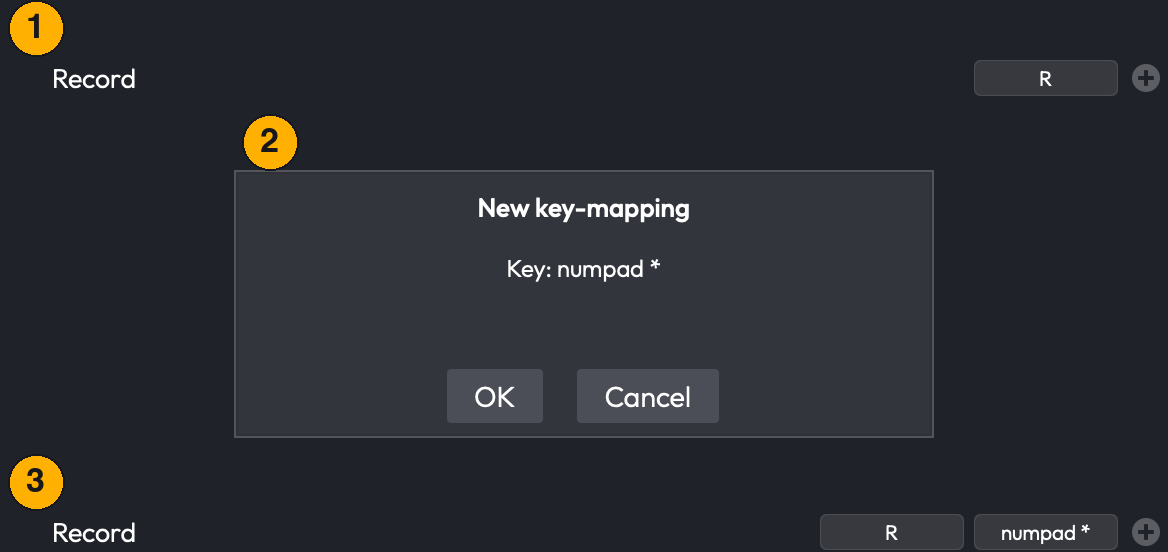
Setting a Keyboard Shortcut
- Click the plus icon at the far right of the action. The New key-mapping dialog opens.
- Press the key or key combination that you want to trigger the action. The dialog shows the key and warns you if it conflicts with an existing mapping. For this example, press asterisk (*), then click OK.
Now, both R and the keypad asterisk (*) are assigned to the Record action. Back in the Edit, test this by turning Record on and off using either R or asterisk (*).
📝 Note: Keyboard mappings are global. Any changes you make will be active for all your Edits.
Changing a Keyboard Shortcut
To change an existing shortcut, click the key-mapping at the far right of the action. Remove this key-mapping deletes it, and Change this key-mapping opens the New key-mapping dialog so you can enter a new assignment.
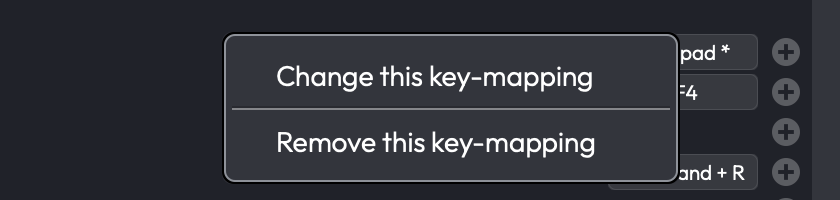
Click to Change or Remove a Key-mapping
Saving Keyboard Shortcuts to a File
Once your keyboard shortcuts are set up the way you want, save the whole key-mapping to a file. If you run Waveform on a different computer, you can then load the file to get all your assignments back.

Save Key-Mappings Button
To save your shortcuts, click Save Key-Mappings... and choose a file
name and location. You can store the file anywhere you like. Waveform
key-mapping files have the .tracktionkeys extension.
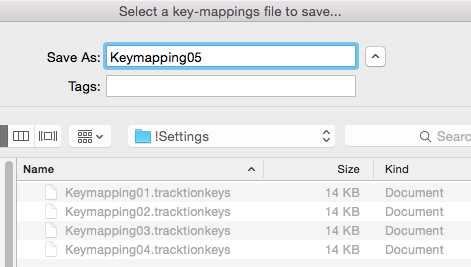
Save Key-Mappings Dialog Box
💡 Tip: Keep these files in a 'settings' folder inside your main Waveform folder, with a version number at the end of each file name. You can then go back to an earlier version if you change your mind about a new keyboard layout.
Loading Keyboard Shortcuts from a File
On a new installation or a new computer, you can load your custom key-mapping file. Open Settings > Keyboard Shortcuts and click Load Key-Mappings..., find your saved key-mapping file, then click Open. All your key-mappings are restored.

Load Key-Mappings Button
Printing a List of Keyboard Shortcuts
To print a list of your current keyboard shortcuts, click View as HTML... at the bottom of the Keyboard Shortcuts page. This opens a formatted list of all the current key-mappings in your web browser, where you can search or print it.

View as HTML Button
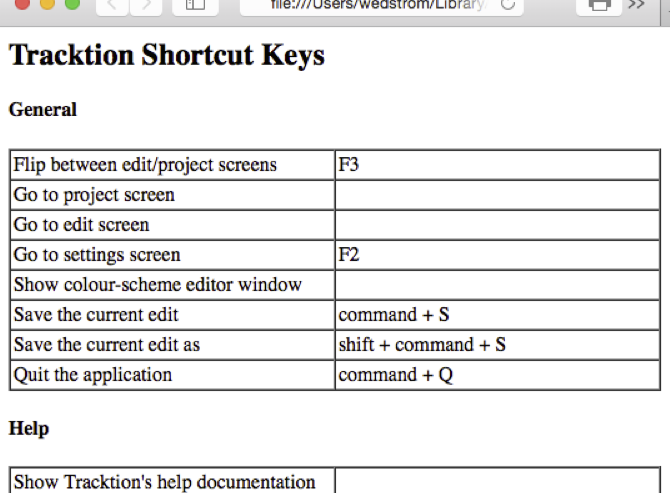
HTML View of the Keyboard Shortcuts List
Moving On
Waveform's macro scripting lets you go further than keyboard shortcuts. The Show Macro Editor button on this page opens the macro script editor, and Show Custom Menu opens the Custom Menu Editor, where you build your own Actions > Custom menu. See Macros.