Pattern Generator
The Pattern Generator builds MIDI notes for you (arpeggios, chords, basslines and melodies) directly inside any MIDI clip, and can follow your Edit's harmony. The notes it creates are real, editable MIDI, so once they're generated you can tweak them like notes you've drawn by hand.
The Pattern Generator is available in every edition. The one exception is the Follow Chord Track key option, which needs Waveform Pro or the MIDI Producer Expansion.
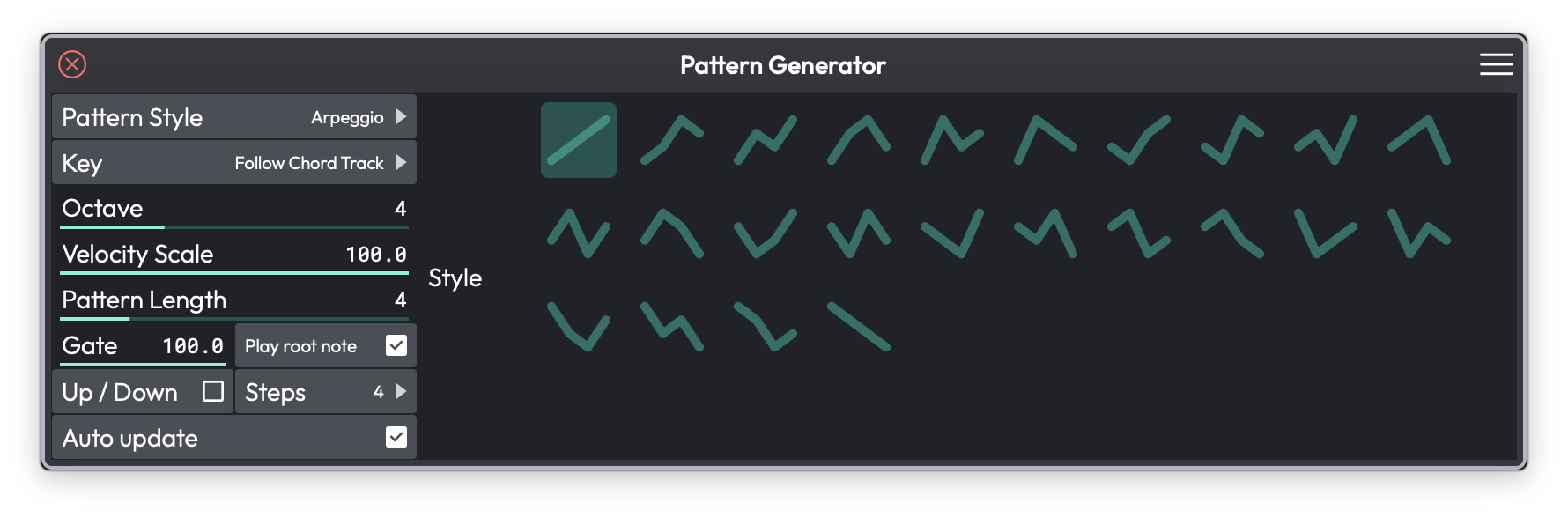
The Pattern Generator window
Opening the Pattern Generator
Select a MIDI clip, then either:
- Click Pattern Generator in the Actions panel to open it in a pop-out window.
- In the Detail Editor's Clip tab, click Pattern Generator (next to Piano Roll) to show the same page inline.
Choosing a Pattern Type
The Pattern Style menu sets what the generator produces. (Choices: None, Arpeggio, Chords, Bassline, Melody) (Default: None)
- None: Generation off. The clip keeps whatever notes are already in it.
- Arpeggio: Spreads the current chord into a stepped pattern.
- Chords: Lays the chords down as block chords.
- Bassline: Builds a single-note bass part from the progression.
- Melody: Generates a melodic line within the key.
When you pick a type, a set of controls appears below it. Some are shared by every type; others are specific to the mode you chose.
Shared Controls
These appear for every pattern type (except None).
Key: Where the generated notes get their pitch reference. (Choices: Follow Chord Track, Follow Global Track, or one of the twelve chromatic roots) (Default: Follow Global Track). Follow Chord Track ties the pattern to the harmony you've laid out on the Chord track and needs Waveform Pro or the MIDI Producer Expansion; Follow Global Track follows the Edit's global key.
With a specific root chosen, a button next to Key ("Update global track key to match key of clip") copies the clip's key to the Edit's global key.
Scale: The scale used when you've chosen a fixed root rather than following a track. (Only shown when Key is set to a specific root.)
Progression: A chord-progression builder shared with the Chord track. Add chords (triads, 6ths, 7ths, 9ths, or custom), drop in popular 3- and 4-chord progressions, and save or load presets. A Suggestion predictor sits alongside it, showing likely next chords as a bar chart so you can build a progression a chord at a time. The builder works the same way as on the Chord track; see The Chord Track for a full walkthrough. (Progression and Suggestion are hidden when Key is Follow Chord Track, because the Chord track supplies the chords.)
Octave: The octave the generated notes are placed in. (Range: 1-11)
Velocity Scale: A scaling factor applied to the velocities of the generated notes, not a velocity value itself. (Range: 0-100)
Gate: How long each note plays relative to its step (shorter gates give a more staccato feel). (Range: 0-100)
Auto update: Regenerates the pattern automatically whenever you change a setting. (Default: on)
⚠️ Warning: With Auto update on, regenerating the pattern overwrites any manual edits you've made to the notes. If you want to hand-tweak the result, turn Auto update off first.
Arpeggio
In addition to the shared controls, Arpeggio adds:
- Style: A grid of arpeggio patterns to choose from.
- Pattern Length: How many steps before the pattern repeats. (Range: 1-16)
- Play root note: Includes the chord's root note in the pattern.
- Up / Down: The direction the arpeggio travels.
- Steps: The number of steps in the pattern. (Choices: 2-8)
Chords
- Chord Preset: How the chords are voiced and placed.
- Octave Up / Octave Down: Adds another copy of the chord's bottom note an octave above or below.
- Spread: Moves the chord's second note up an octave, for a more open voicing.
Bassline
- Bass Preset: The rhythmic and melodic shape of the bass part.
Melody
- Note Length: The length of the generated melody notes.
- All notes in key: Lets the melody use every note in the key rather than a restricted set.
- Randomise Notes: Generates a fresh variation of the melody.
💡 Tip: The first time you use Melody mode you'll see a hint to paint notes in and out with the paint tool. You can steer which pitches the generator favours by drawing them in or erasing them.
⚡ Things to Watch Out For
- Several clips at once. With more than one MIDI clip selected, the page applies to all of them, but only shows the shared settings (Pattern Style, Key, Scale, Progression, Suggestion, Octave, Velocity Scale and Auto update).
Moving On
The Pattern Generator shares its Progression builder with the Chord track, so the two work well together: set up your harmony on the Chord track, then have each clip's generator follow it.