Submix Tracks
In professional mixing, it's common to submix drums to a stereo bus to add compression, EQ, and limiting before mixing them with the other tracks. Vocals, guitars and other instruments are often submixed too. A Submix track looks like a Folder track, but audio passes through it, so you can process the submix with plugins.
You can also use an ordinary track as a submix, as described in Creating an Old School Submix Track.
Creating a Submix Track
To create a Submix track:
-
Select all the tracks you want to include.
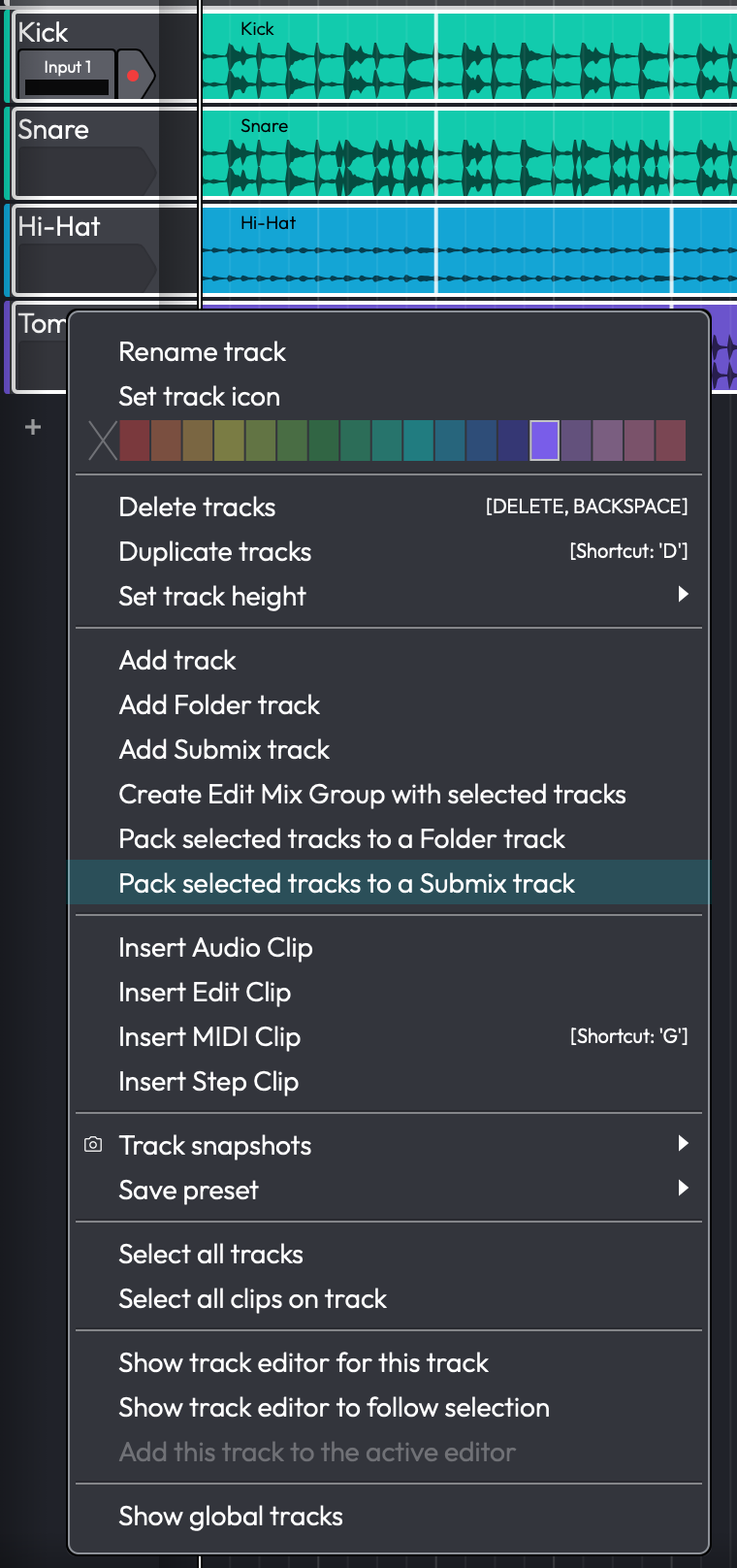
Creating a Submix Track
-
Right-click any of the tracks and choose Pack selected tracks to a Submix track. The same action is also available in the Actions panel as Create Submix Containing.
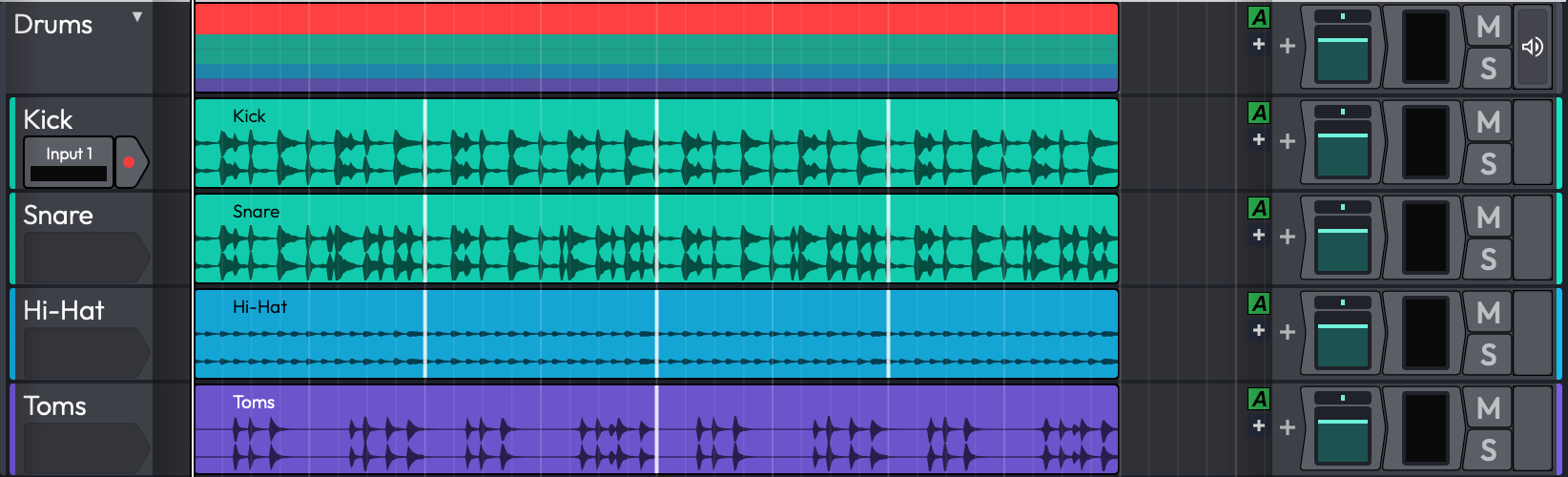
A Submix Track
The result looks much like a Folder track, but the audio passes through the Submix track. You can use its Volume & Pan plugin and add any other plugins you want.
Working with Submix Tracks
Adding Tracks
To add a track to a Submix, drag it onto the Submix track. You can also drag tracks up or down within the Submix track to reorder them. Both work the same way as for Folder tracks.
Removing Tracks
To remove a track from a Submix, drag it back out.
💡 Tip: When dragging tracks, grab them by the track name.
Opening and Closing a Submix
As with a Folder track, you open and close a Submix with the triangular control at the far left of its header.
Adding Effects
You can add any built-in or third-party effect (except the Waveform Freeze Point) to a Submix track. Drag effects to its mixer, as for any other track.
Muting
Mute mutes everything within the Submix track.
Soloing
Soloing a Submix solos everything inside it and mutes the tracks outside it.
Creating an Old School Submix Track
In older versions of Waveform, you set up a submix with an ordinary track. You may come across older projects that use this method, so this section shows how it works.
-
Create a track in the normal way.
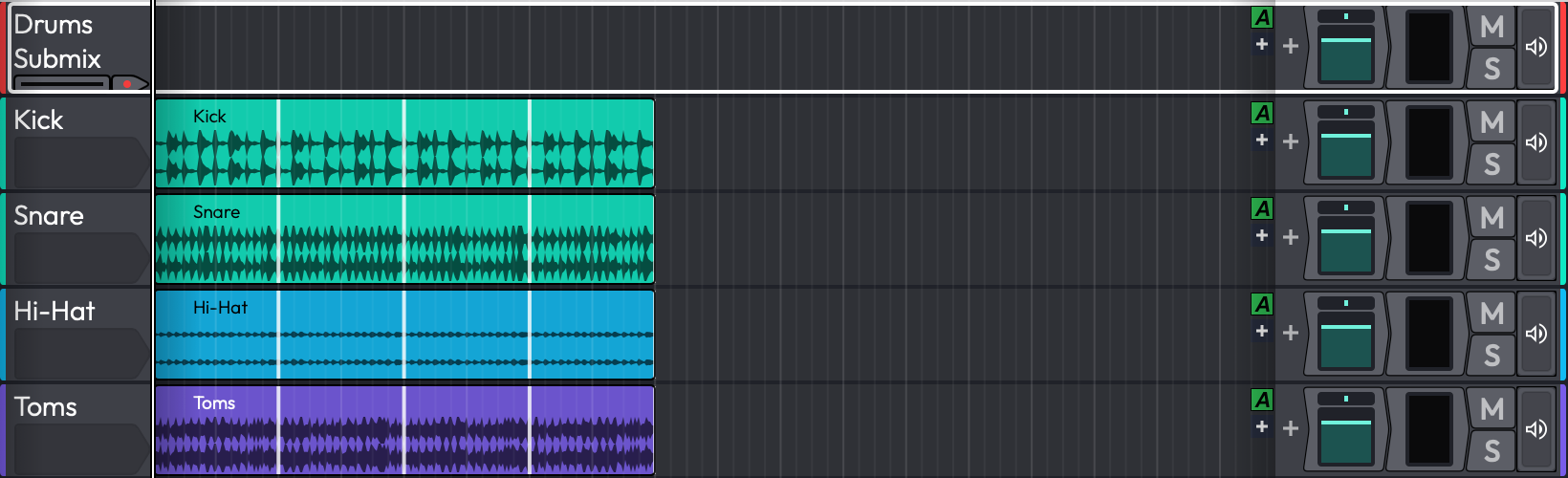
Creating an Old School Submix Track
-
Give the track a suitable name. This example uses Drums Submix.
- Select all the tracks you want to route to the submix.
- In the Actions panel, click Track Destination. Select the Drums Submix track. This routes the output of each selected track to the Drums Submix track.
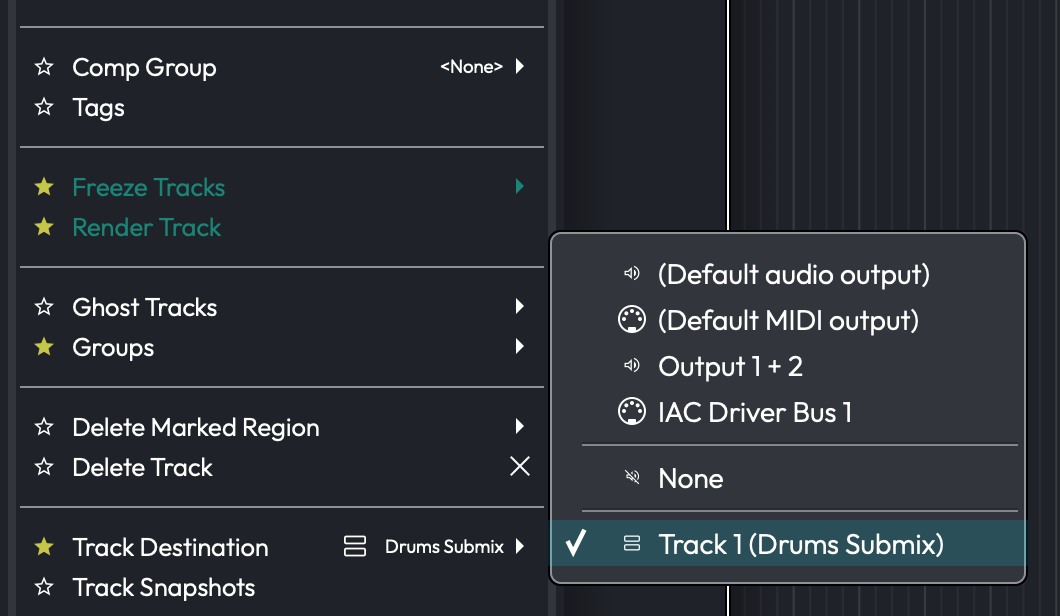
Set the Track Destination on the Source Tracks
You can now use the Volume & Pan control on the Drums Submix track to set the volume of all the tracks you routed to it, and add any plugins you want. This example uses the built-in Compressor and Limiter, but any plugin works here, including third-party ones.

Submix with a Compressor and Limiter
Moving On
To render each submix to its own file, set Render to Submixes in the Render dialog's Advanced mode PRO, which is in Waveform Pro only. See Rendering and Stems.