Loop Recording
Loop recording is a quick way to record several takes of a part onto a single track. Afterwards, you pick the best take and make it active, so it's the one you hear during playback.
Loop recording also sets you up for Waveform's comping tools. With comping, you go phrase by phrase through the takes, choose the best parts and build a composite take. See Comping.
Getting into Loop Recording Mode
To loop record, turn on Loop (L) in the transport bar. When you then click Record, Waveform records only between the In marker and Out marker. The transport loops between the two markers, recording take after take until you click Stop.
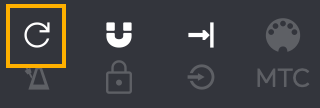
Turn on Loop for Loop Recording Mode
Loop Recording Step-by-Step
-
Set the In marker and the Out marker over the range you want to loop record. To set the In marker, position the cursor and press I. To set the Out marker, position the cursor at the end of the loop and press O.

Set the In Marker and Out Marker
📝 Note: The count-in from the Click menu works for loop recording. For a running start before the first take, set Click > Count-in to 1 bar or 2 bars. The count-in plays once, not before every pass of the loop.
-
Configure the input and check your levels, as for standard recording.
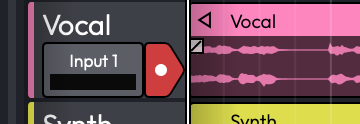
Configure the Input for Recording
-
Click Record (R) on the transport bar to start recording.
When the cursor reaches the Out marker, Waveform loops back for the next take. You can record as many takes as you like.
Selecting the Best Take
After loop recording, the takes are stacked within the Audio clip. The last take you recorded is the one you hear during playback, called the "active take". To make a different take active, click the plus (+) sign in the lower right corner of the clip and pick it from the list of takes. You can audition each take this way and keep your favourite.
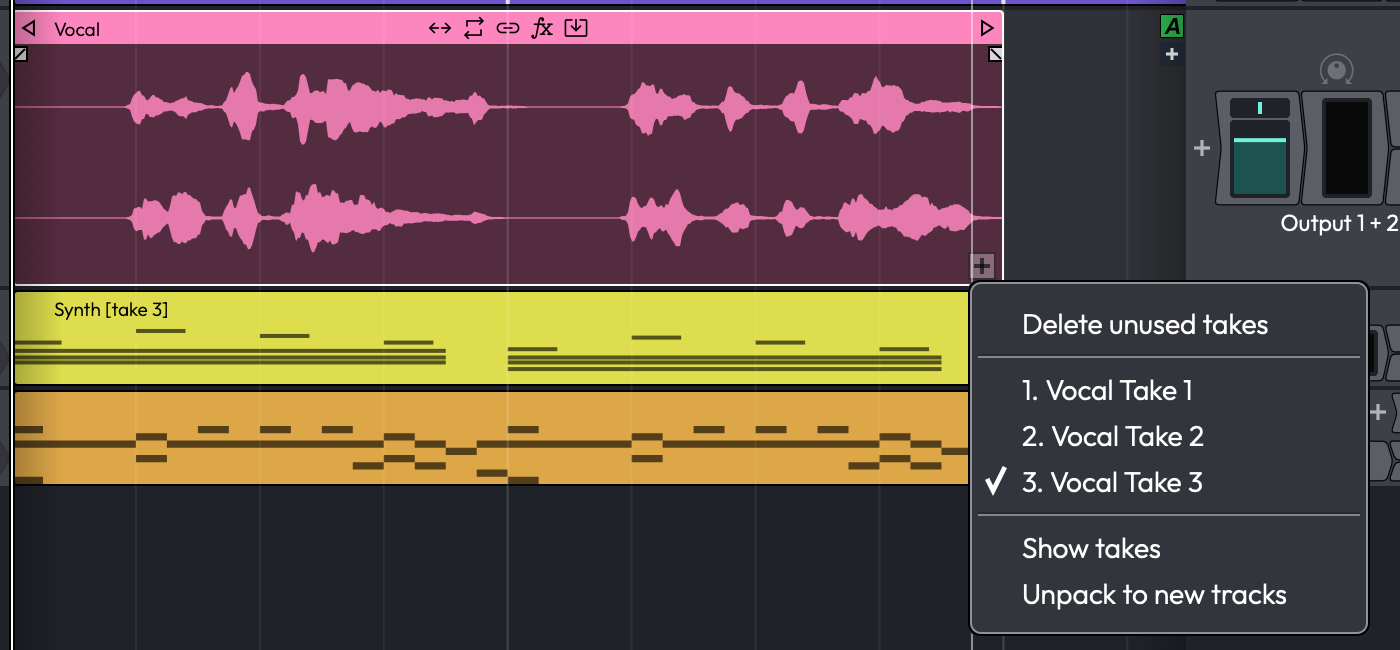
Choosing the Active Take
💡 Tip: Takes recorded this way are ready for Comping.
Unpacking Takes to Tracks
To work with your loop-recorded takes as separate audio tracks, click the plus (+) sign and select Unpack to new tracks.
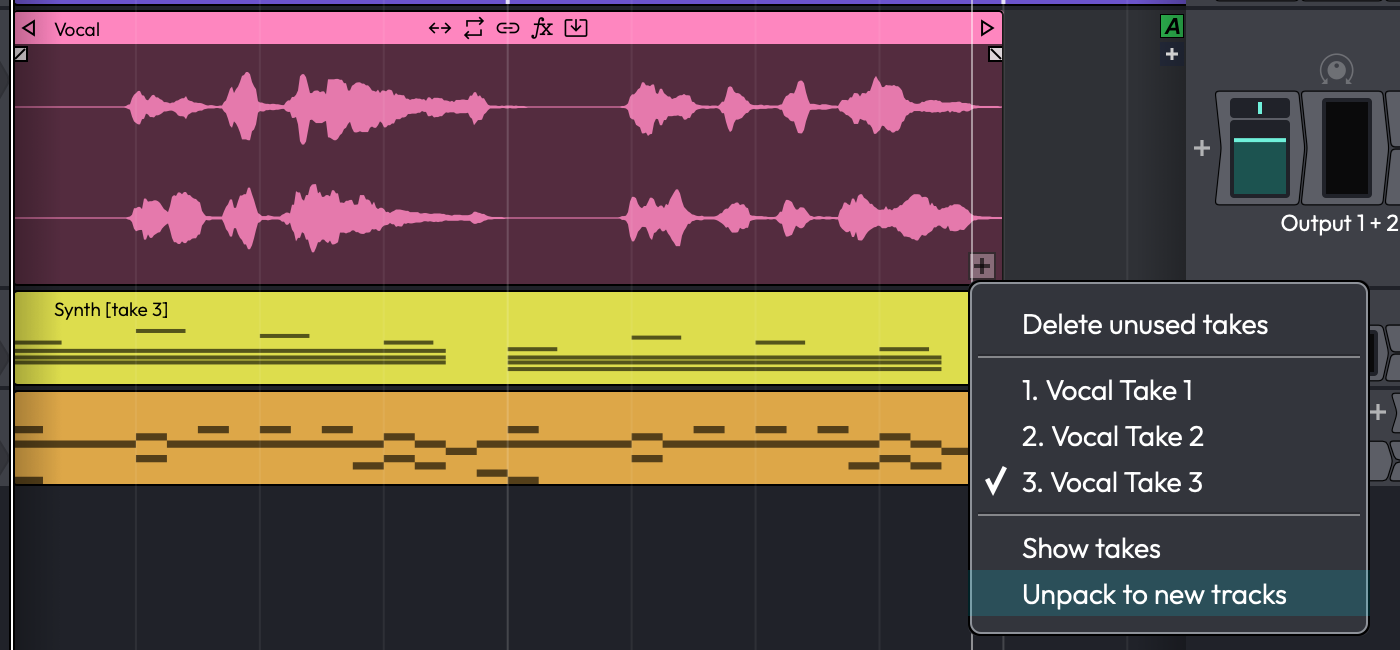
Unpack Takes to Tracks
This converts an Audio clip full of takes into a series of tracks, each with its own Audio clip. You can then use normal audio editing to move them around, chop them up, or arrange them into a song.
Moving On
Next, Comping shows how to build a composite take from your loop-recorded takes.