Demo Projects and Templates
This chapter shows you how to start from ready-made content: demo songs and project templates.
Establish a Waveform Projects Folder
Before you start, decide where to keep your Waveform projects. For example, create a Waveform folder inside your Documents folder, using Finder (macOS) or File Explorer (Windows).
Waveform has no setting for a projects folder. Instead, you pick the folder in the Location field of the New Project dialog, and Waveform offers the last folder you used the next time you create a project.
The Welcome Tab
The Welcome tab is the first tab in the window. Upon launch in Settings > General decides whether Waveform opens on it (see Startup).
| Area | What it shows |
|---|---|
| Recent Edits | The Edits you've opened most recently, newest first. |
| Project Templates | Templates to start a new project from (see below). |
| Audio Settings | Your audio device type, devices, sample rate and buffer size, so you can check them before you start. |
| Colour Scheme | Buttons for the dark scheme, the light scheme and the Colour Scheme Editor. |
| News Feed / Training Videos | Tracktion news and tutorial videos. Click an item to open it in your web browser, or hover over it to read its full description. |
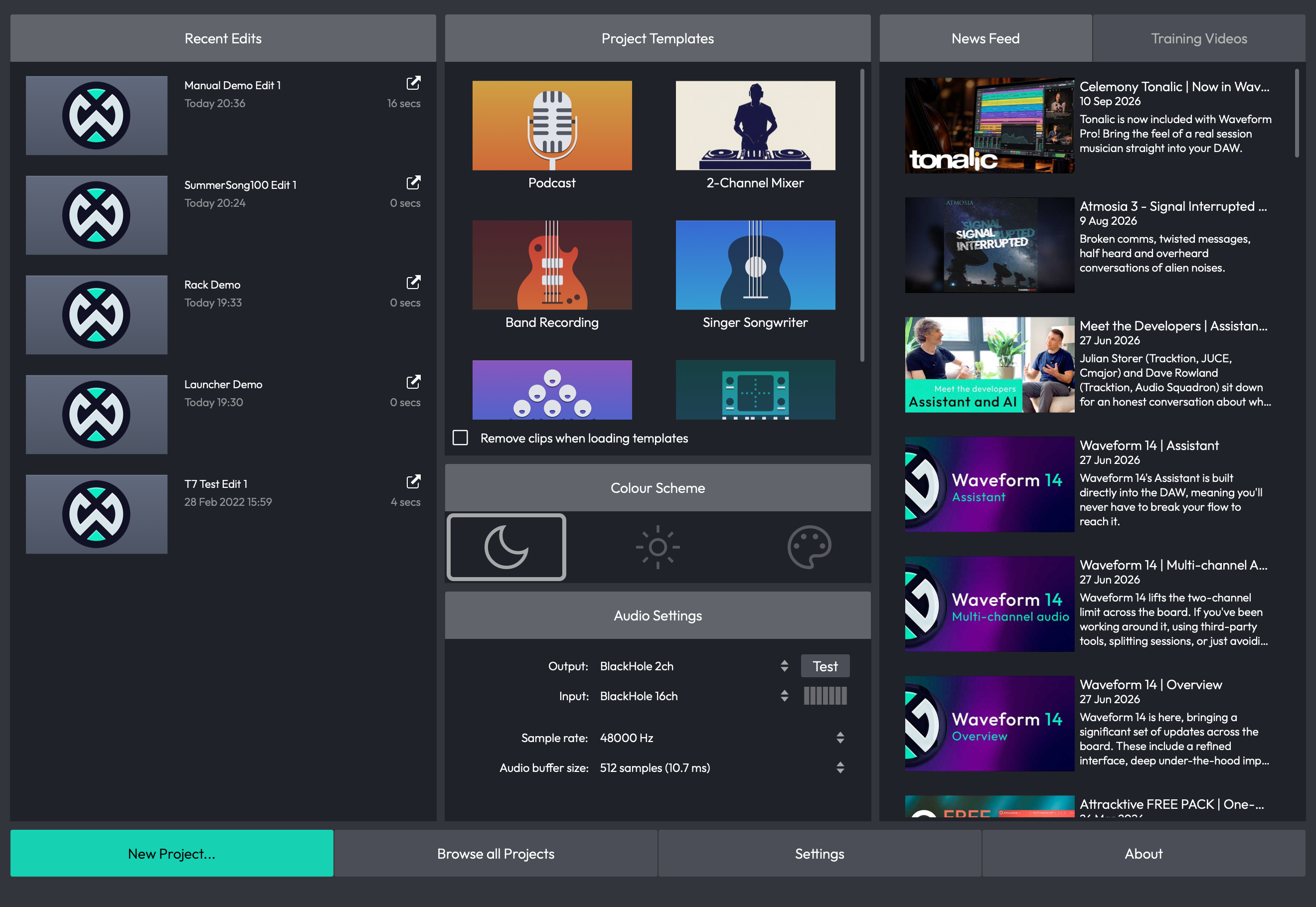
The Welcome tab
Along the bottom are New Project..., Browse all Projects (which opens the Projects tab), Settings and About.
Starting From a Template
The quickest way to get something playable is to start from one of the built-in templates. They include demo songs as well as ready-to-use starting points for new projects.
Open the Welcome tab and look at the Project Templates list. Each entry is a complete project you can use as the starting point for a new one.
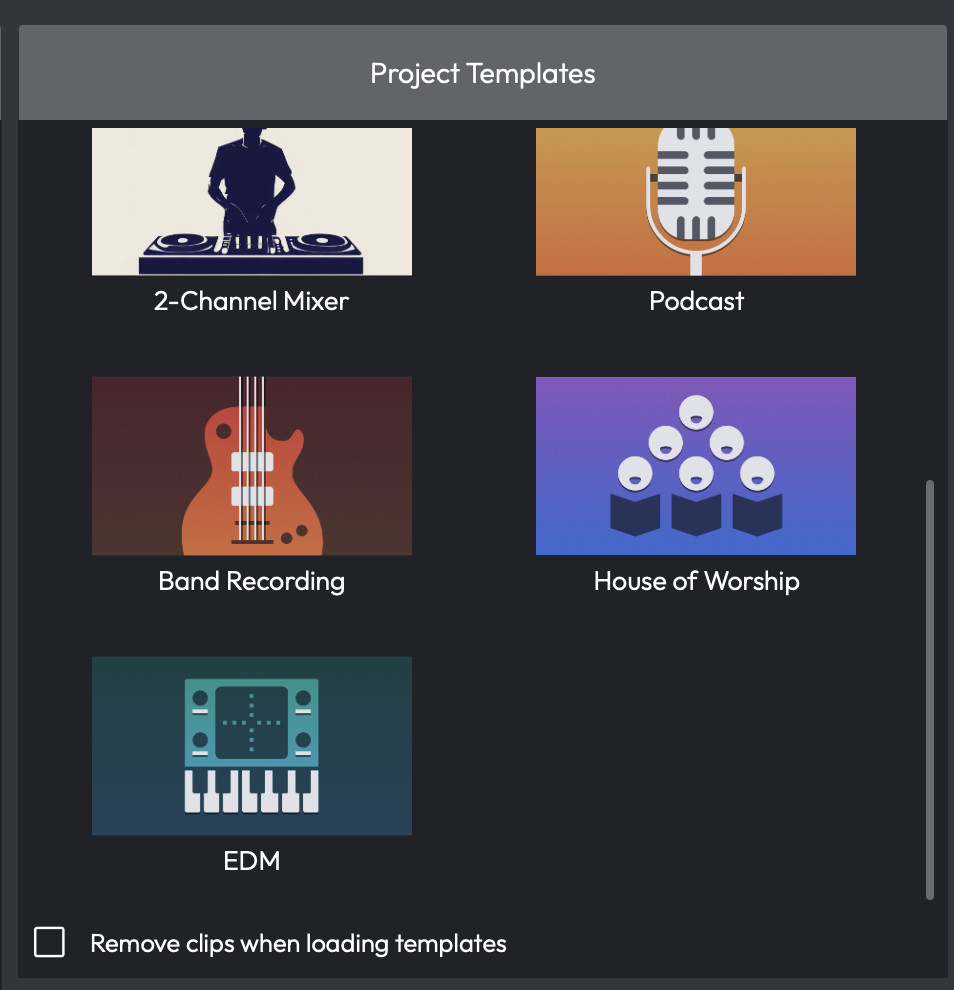
The Project Templates List in the Welcome Tab
Click a template to open the New Project dialog with that template chosen. Give the project a Name, pick a Location and click Create Project. The original template is left untouched, so you can reuse it as often as you like.
💡 Tip: To keep the template's track and plugin layout but start with an empty arrangement, turn on Remove clips when loading templates (the toggle under the Project Templates list, also in the New Project dialog) before you click. The project then opens with its routing in place but no clips on the tracks.
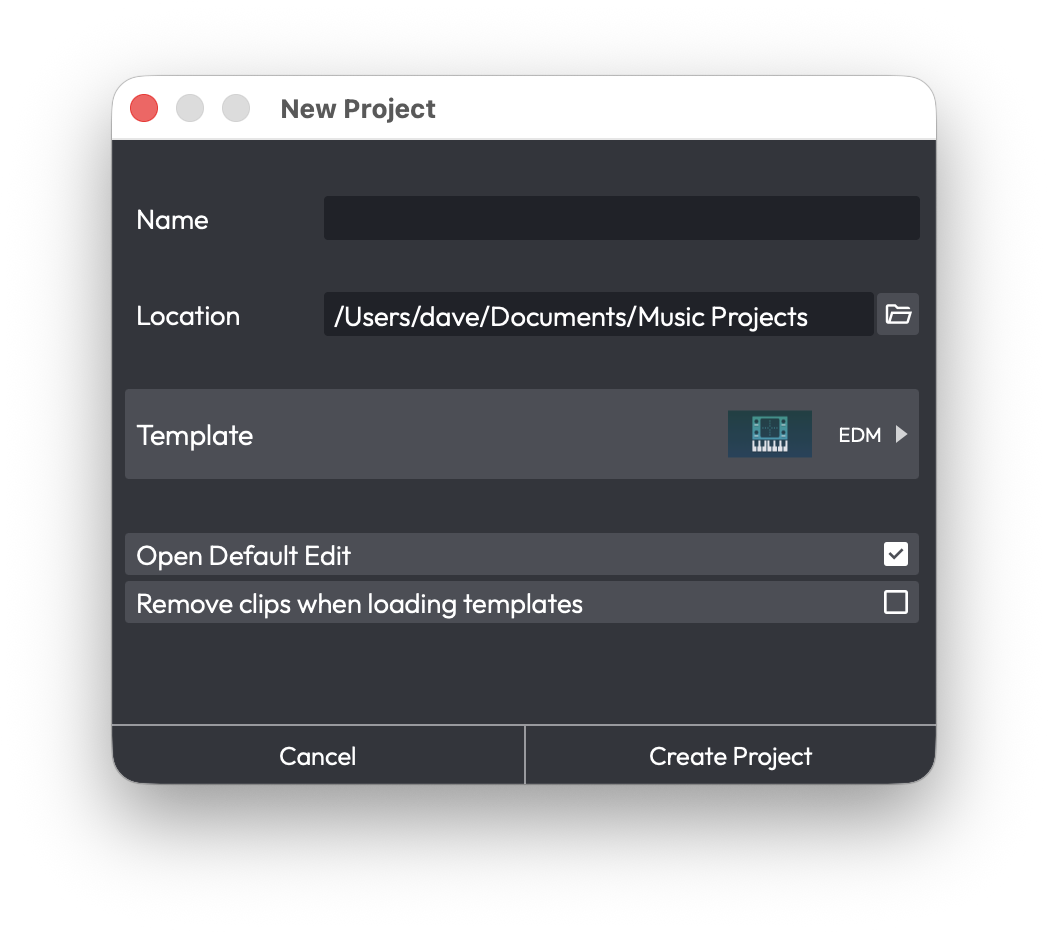
A New Project Created From a Template
Demo Songs in Your Projects
Any demo songs bundled with your installation are added to your projects automatically the first time you run Waveform, so there's nothing to download. They appear in the Projects tab alongside your own work.
💡 Tip: You can move the demos into a folder in the Projects tab to keep them apart from your own work.
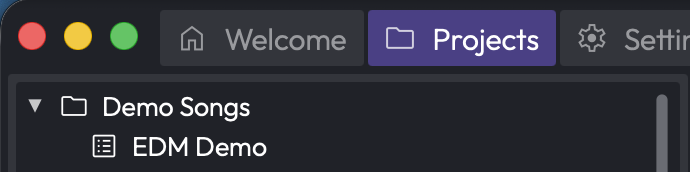
Demo Songs Collected in a Project Folder
Moving On
Next, set up your audio interface in Audio Device Setup.