The Chord Track PRO
📝 Edition: Waveform Pro, or with the MIDI Producer Expansion.
The Chord track is a global track that maps out your Edit's harmony over time. It holds Chord clips, and each Chord clip contains a chord progression. The Chord track makes no sound of its own and hosts no plugins. Think of it as a harmonic reference for the rest of the Edit. The Pattern Generator can follow it to stay in harmony, and Audio clips can automatically pitch-shift to match it.

The Chord track with two Chord clips
Showing the Chord Track
The Chord track is hidden by default. There is one Chord track per Edit, and it appears with the other global tracks below the timeline. To show or hide it:
- Choose Show Chord track from the Global tracks section of the View menu.
- Or right-click the header of any global track (Tempo, Marker, or Arranger) and choose Show Chord track.
- Or use the keyboard shortcut Opt + Cmd + F11 / Ctrl + Alt + F11.
Inserting Chords
To add a chord to the Chord track, position the cursor where you want the chord to begin, then do one of the following:
- Use the Insert chord command: Opt + C / Alt + C.
- Or select the Chord track header and click the New Chord button in the Actions panel.
A new Chord clip one bar long is inserted at the cursor.
With the Chord track selected, the Actions panel also offers Shrink and Grow buttons to change the height of the track.
⚠️ Warning: Chord clips on the track should not overlap. If they do, Waveform shows the message "This track contains overlapping chords. Portions of some chord are ignored."
Chord Clip Properties
Select a Chord clip to see its settings in the Actions panel:
Key: Sets the key used to spell the clip's chords. The default, Follow Global Track, uses the Edit's global key signature. Choose any of the twelve chromatic roots to give this clip its own key.
Scale: Shown only when Key is set to something other than Follow Global Track. Choose from Major, Minor, Ionian, Dorian, Phrygian, Lydian, Mixolydian, Aeolian, Locrian, Melodic Minor, and Harmonic Minor.
Update global track key: The small arrow button next to the Key control writes the clip's key back to the Edit's global key signature.
Start / Length / End: Position and duration of the clip on the timeline.
Colour: Changes the clip's strip colour.
Building a Chord Progression
The Progression section of the Actions panel is where you define the chords in the clip. A progression can hold up to 64 chords.
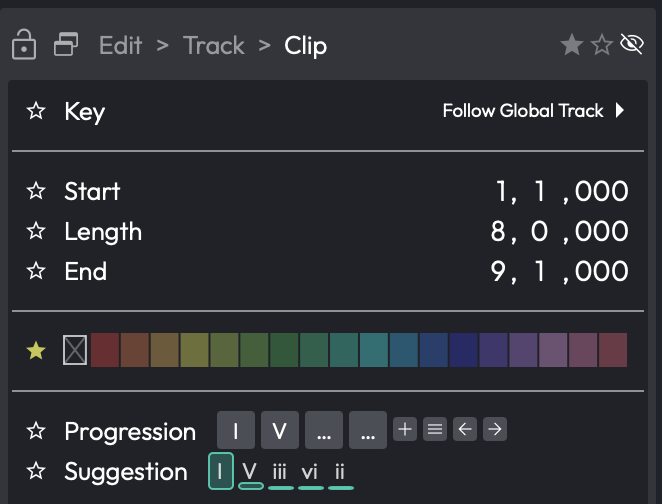
The Progression builder and Suggestion panel
Add: Appends a chord. The menu offers the diatonic triads, sixths, sevenths, and ninths for the current key, plus any custom chords you have defined in Settings > Chords.
Menu: Opens a menu with Presets (and Save as Preset), progressions copied from other clips in the Edit, Popular 3 chord progressions, Popular 4 chord progressions, and Clear.
Previous / Next: Step through the popular chord progressions one at a time.
Each chord in the progression has its own small controls:
- Prev / Next: select the previous or next chord type. Shift-click changes the root note instead.
- Up / Down: move the chord up or down an octave. Shift-click changes the chord inversion instead.
You can also type chords in from the computer keyboard while the Progression section has focus: keys 1-7 append the diatonic triads of the current key, Shift + 1-7 append the corresponding seventh chords, letters A-G append absolute major chords (with Shift for the sharpened root, for example Shift + C for C#), and Delete removes the last chord.
💡 Tip: The Suggestion panel next to the Progression builder shows a Chord Progression Prediction: a bar chart of the most likely next chords given what you have so far. Click a suggestion to append it.
Following the Chord Track
The Chord track only becomes audible through the features that follow it:
- The Pattern Generator can generate basslines, arpeggios, and chord parts that track the progression.
- Audio clips PRO can automatically pitch-shift to follow the Chord track. This needs Waveform Pro; the MIDI Producer Expansion doesn't include it.
The chord types offered throughout Waveform (including the Chord track) can be customised in Settings > Chords, where you can disable chords you never use and define your own.