Getting Help
This chapter lists the ways to get help while you work with Waveform.
Pop-up Help
The first source of help is pop-up help. Press F1 to view pop-up help for the item under the pointer. To turn pop-up help off, untick Help > Pop-up help > Enable pop-up help. See Pop-up Help for an illustrated guide.
Roll-over Help
Roll-over messages in the upper right describe the item under the pointer.
The Help Menu
The Help menu collects the built-in sources of help:
| Item | What it does |
|---|---|
| About Waveform | Shows the About box, with the version number you'll need for a support request. |
| Check for updates | Checks whether a newer version of Waveform is available. |
| Get help > User guide PDF | Opens this manual (Shift + F1). |
| Get help > Tracktion Website | Opens the software help pages on the Tracktion website. |
| Pop-up help | Enable pop-up help turns pop-up help on or off, and Delay pop-up help messages makes it wait longer before appearing. |
| Show the First Run Setup panel | Shows or hides the First Run Setup panel. |
| Show the Waveform log file | Shows the log file in Finder or File Explorer, ready to attach to a support request. |
Quick Start
If you're new to Waveform, the Quick Start chapter at the front of this manual is the fastest way to get set up and making music. It takes you from installing through to your first recording and export, linking to the fuller chapters as you go. You can also open this manual at any time from Help > Get help > User guide PDF, or by pressing Shift + F1.
Ask the AI Assistant
The AI Assistant, in every edition, can answer questions about how Waveform works and about your project. Once you've chosen a profile on the Settings > AI page, click the Assistant tab in the Browser and ask in plain language.
Keyboard Shortcut List
The keyboard shortcut list is a good way to get to know Waveform. Open Settings > Keyboard Shortcuts to see every assignable action, grouped by category.

View as HTML Button
To find a shortcut, type in the page's search box to filter the list by name, or click the Press keyboard to filter box and press a key to see what it does. To print the list, click View as HTML... to load it in your web browser.
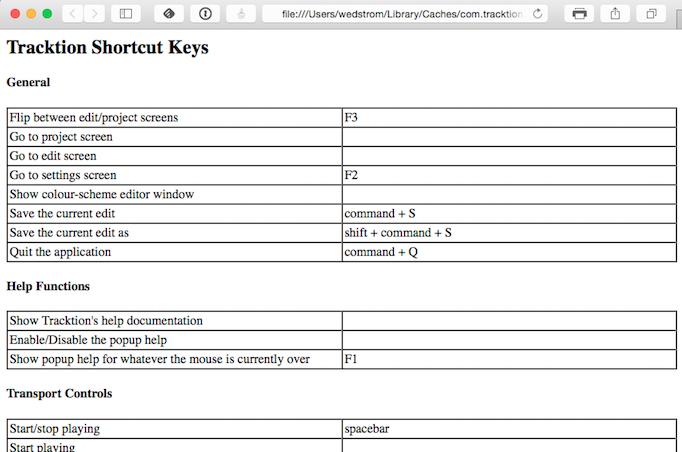
HTML View of Keyboard Shortcuts Assignments
Tracktion Videos
The official Tracktion YouTube channel is the best place for video tutorials, feature walkthroughs, and update overviews, with new videos added regularly. Browse the playlists to find videos grouped by topic.
The Tutorial Videos page on the Tracktion website also has a selection of training videos, and Groove 3 has a large library of music production courses.
Tracktion Forums
The long-standing official forum for Waveform Software is hosted at KVR. This is the most active Waveform forum, where you can talk to other users, Tracktion staff and developers.
There is also a private Tracktion Users Group on Facebook. If you use Facebook, ask to join; Tracktion staff are members too.
The Waveform Software official Facebook page has updates, news about Waveform, promo offers and profiles of Waveform artists ("Tracktioneers").
Tracktion Support
Bug reports and feature requests get resolved fastest when they follow the checklist below.
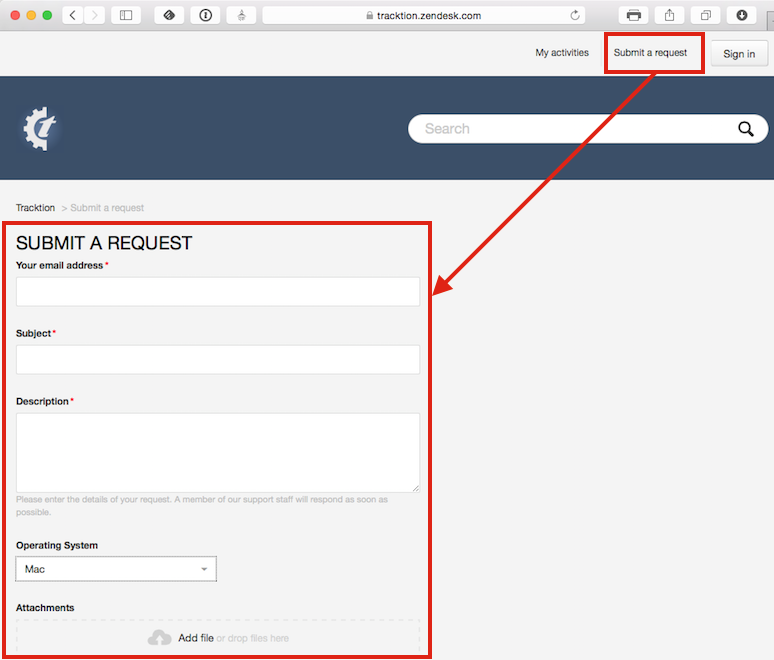
Waveform Request Form
Request Form Checklist:
- Use "FR:" in the title for feature requests
- Use "BR:" in the title for bug reports
- Include the Waveform version number (from the Waveform About box)
- Include your operating system and version
- Note your system specs like processor type and the amount of RAM
- List the steps to recreate the bug
- Attach the log file (Help > Show the Waveform log file)
- Attach or link to a screenshot or screen recording
- Report one issue at a time
Follow these same guidelines when posting bugs and feature requests to the KVR Waveform Software forum.
Moving On
Next, The Edit Tab explains the layout of the Edit tab, where most of your work in Waveform happens.