Folder Tracks
A Folder track collects a group of tracks so you can work with them as a unit. The most obvious use is to collapse related tracks, such as your drum tracks, so they take up a single row.
Folder tracks also make it easy to apply volume automation, so you can fade a number of tracks at the same time. You can solo every track in a folder with a single click, and do basic editing across the included tracks.
Creating a Folder Track
To create a Folder track, right-click the track name of any existing track and select Add Folder track. The Folder track appears below the original track.

New Empty Folder Track
Alternatively, right-click the background of the Track section and choose Create a new folder track, or use Track > Add folder track from the main menu.
Each of these methods creates an empty Folder track. To create one that already contains tracks, see Creating a Folder Track with Existing Tracks.
Working with Folder Tracks
Putting Tracks into a Folder Track
To put a track into a Folder track, drag the track by its name and drop it on the folder. Just before you drop it, the Folder track glows red to show it's ready to receive your track.

Folder Track after Dropping in One Track
If the folder already has tracks in it, drag over the folder and then downward. A red glowing insertion point shows where your track will go between the other tracks, so you can get the order you want.
Naming a Folder Track
You name a Folder track in the same way as any other track. Click the name area of the track header, then edit Name in the Actions panel. The default names are Folder 1, Folder 2 and so on.
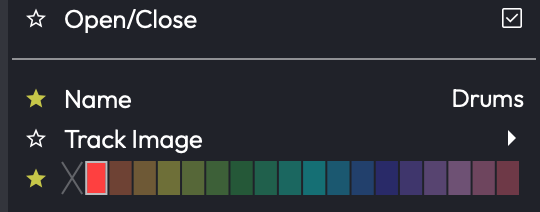
Naming a Folder Track
💡 Tip: A common use of Folder tracks is to organise all of your drum parts into a single folder, named Drums, for example.
Reordering Tracks within a Folder Track
To reorder the tracks within a Folder track, drag any track to its new position. The red insertion line shows exactly where the track will go. If you drop a track directly onto the Folder track, it goes to the top position.
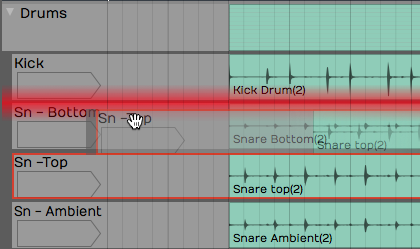
Reordering Tracks within a Folder
Removing Tracks from a Folder Track
To take a track out of its folder, select it and click Unfolder in the Actions panel ("Removes this track from its parent folder"). To take several out at once, select them, right-click one of their track headers and choose Unpack selected tracks from folder.
Collapsing and Expanding a Folder Track
Click the small triangle to the left of the Folder track name to expand or collapse the folder. Collapsing a folder doesn't affect playback: all the tracks in it still play and respond as normal.
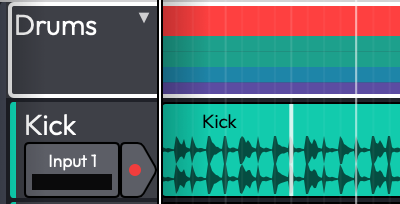
Expand/Collapse a Folder by Clicking the Triangle
Soloing/Muting a Folder Track
Folder tracks have Solo and Mute buttons like any other track, but they act on all the tracks in the folder. Click Solo on a Folder track that holds your drums, and all your drum tracks are soloed. Mute likewise mutes all the tracks in the folder.
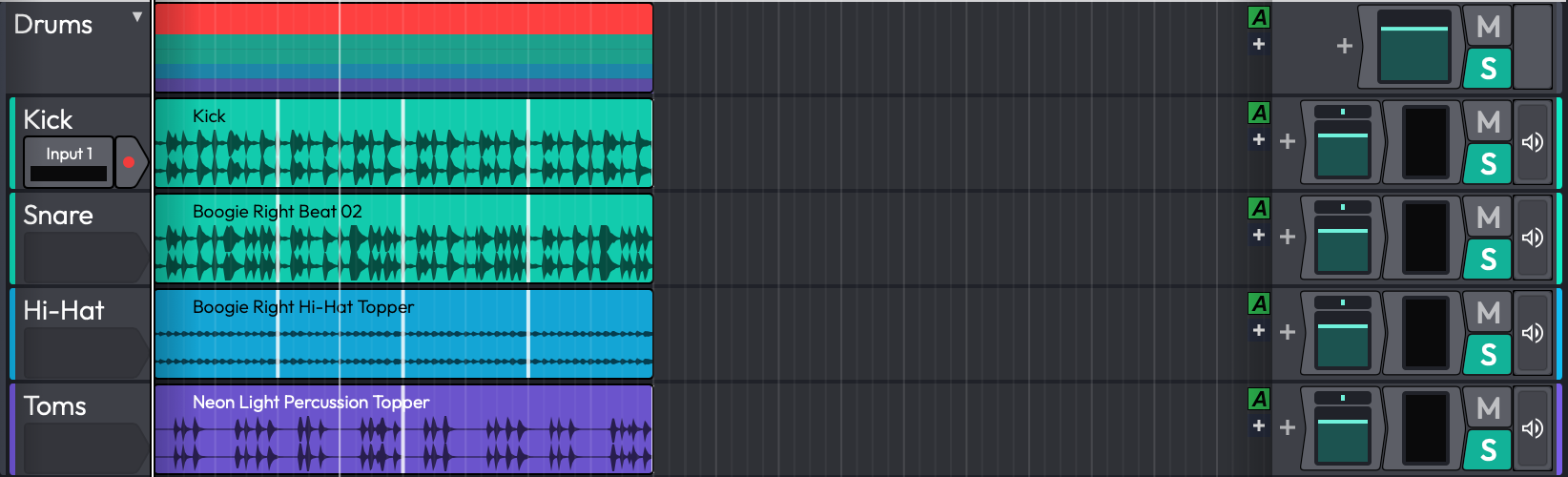
Folder Track Solo
📝 Note: When you solo a Folder track, the tracks in it show a blinking Solo button, which means they're soloed by the Folder track rather than directly. Click a blinking Solo to change it to the standard solo state with a steady indicator.
Solo and mute alone make it worth setting up a Folder track for each instrument type, such as drums, guitars, keyboards and vocals.
The Folder Track VCA
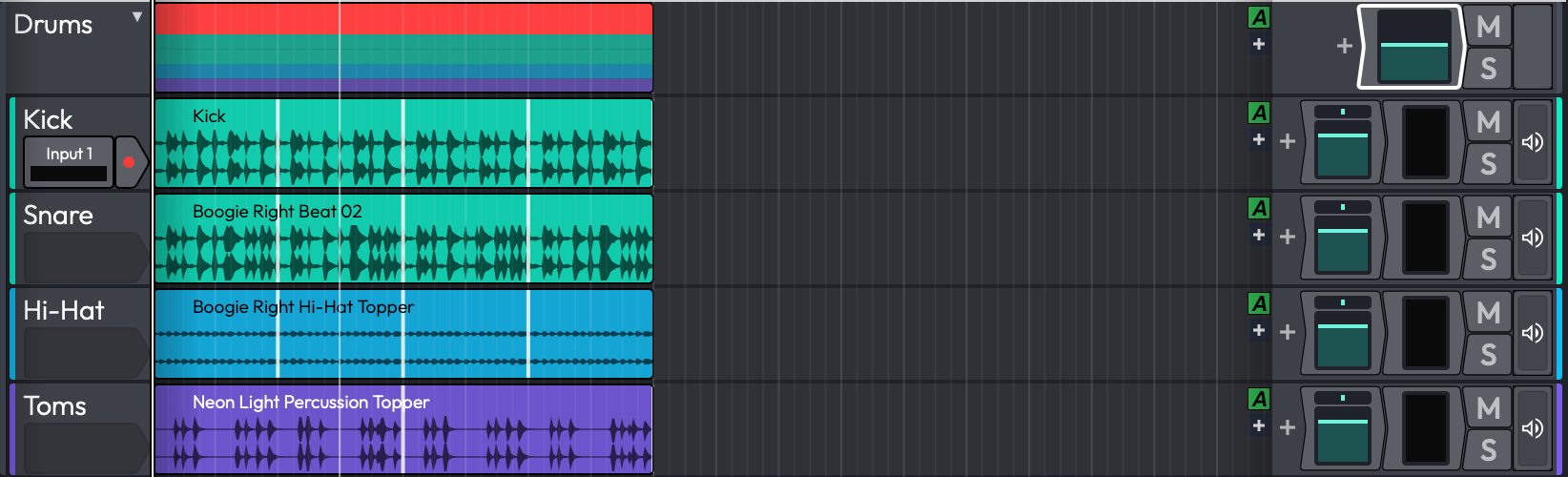
VCA stands for "voltage controlled amplifier", after a similar feature on automated analogue mixing consoles. The VCA on a Folder track controls the level of all the included tracks proportionally, giving you one level control for everything in the folder.
Folder Track VCA
No audio passes through the Folder track itself. The VCA acts as a remote control, proportionally adjusting the Volume & Pan plugins of all the tracks in the folder. This lets you balance whole groups of instruments without adding extra buses.
📝 Note: To keep one track out of the VCA's control, select that track's Volume & Pan plugin and turn on Ignore VCA in the Actions panel. The option only appears for tracks inside a folder. If a folder has no VCA, right-click its track header and choose Insert VCA plugin... to add one.
📝 Note: Adding an effect plugin to a Folder track turns it into a Submix track, so audio then passes through it. Submix tracks are covered in the next chapter, Submix Tracks.
Creating a Folder Track with Existing Tracks
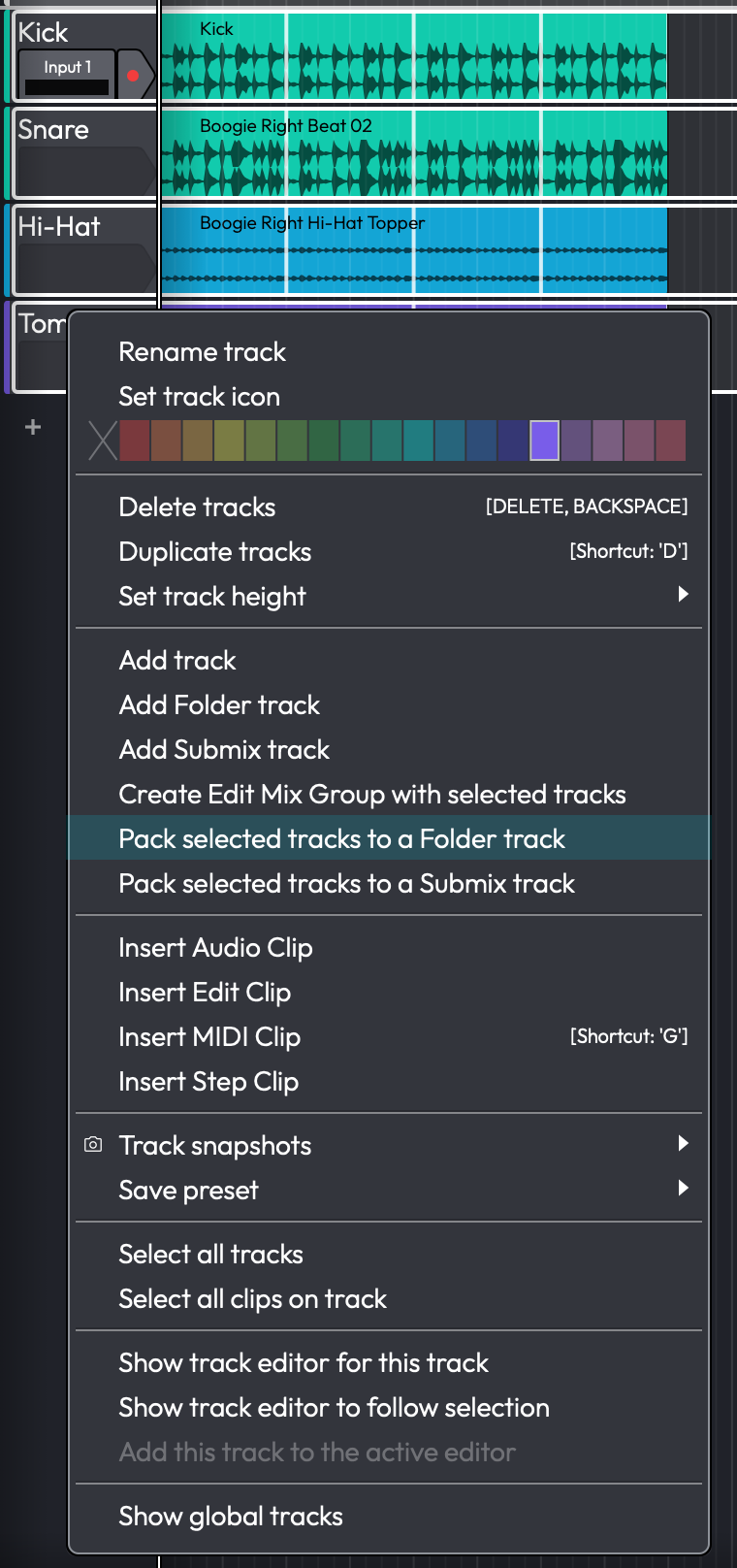
Multitrack drums often have 10 or more tracks to put into a Folder track. Rather than drag each track in individually, you can pack them all into a Folder track at once:
Create a Folder Track Containing Existing Tracks
- Click the name of the first track, then hold down Shift and click the last track. All the drum tracks are highlighted.
- Right-click the track name of any of the selected tracks and choose Pack selected tracks to a Folder track (also in the Track menu, or use Create Folder Containing in the Actions panel). This creates a Folder track containing all of your drum tracks.
- Select the Folder track and give it a descriptive name in the Actions panel.
💡 Tip: Pack selected tracks to a Folder track works for any related selection of instruments or vocals, not only drums.
Editing With Folder Tracks
Folder tracks also let you edit the clips on all of their tracks at once.
Splitting Contained Clips
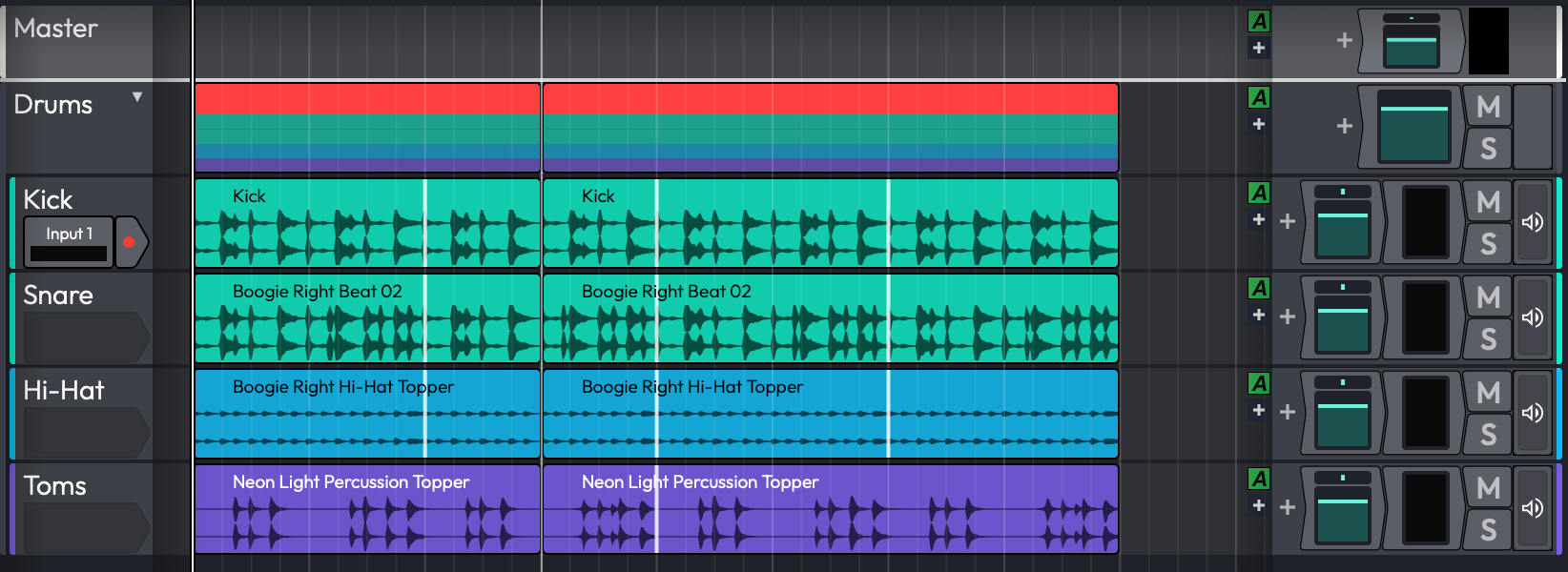
To split clips across all of the contained tracks, select the Folder track clip (the collection clip: the summary clip on the Folder track), position the cursor, then press /.
Split All Clips Within a Folder Track
Rearranging
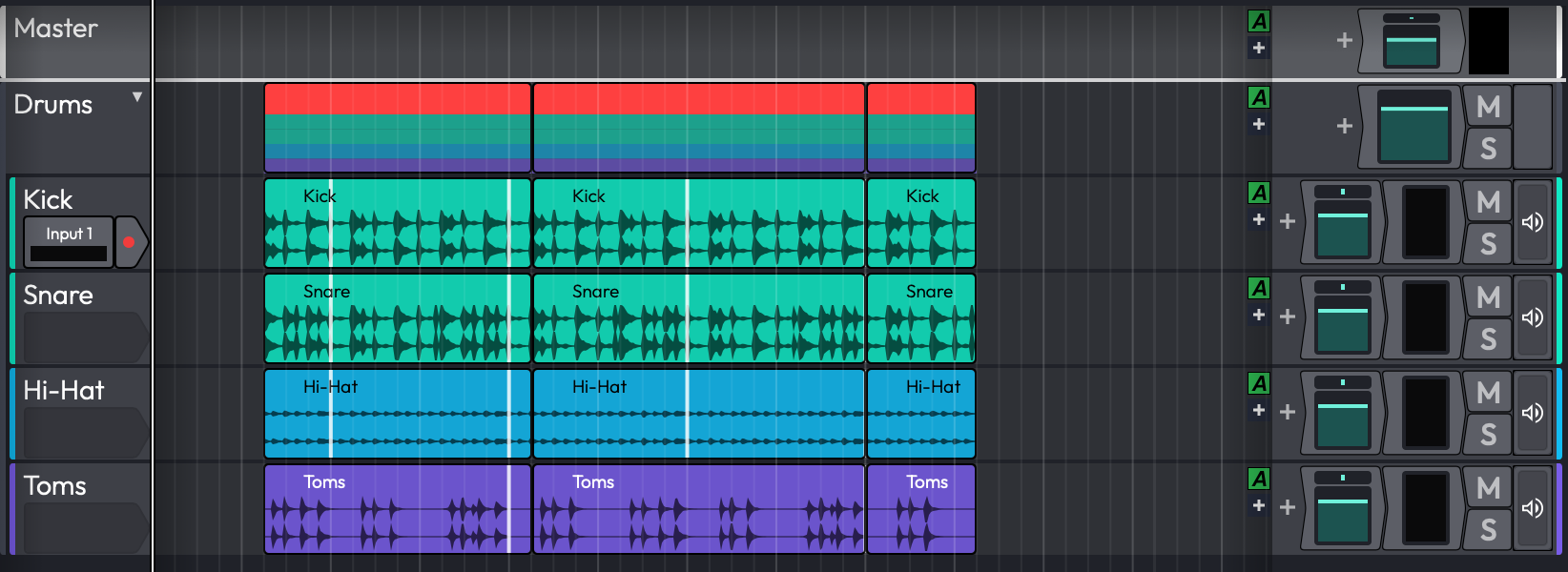
After splitting the Folder track clip, drag the Folder track clips into any order to rearrange everything in the folder, for example to swap verse 1 and verse 2. With all your tracks in one Folder track, you can block-arrange the whole song this way.
Rearranging Clips within a Folder Track
Trimming
The Folder track clips have trim handles at each end. Drag them to trim all the included clips.
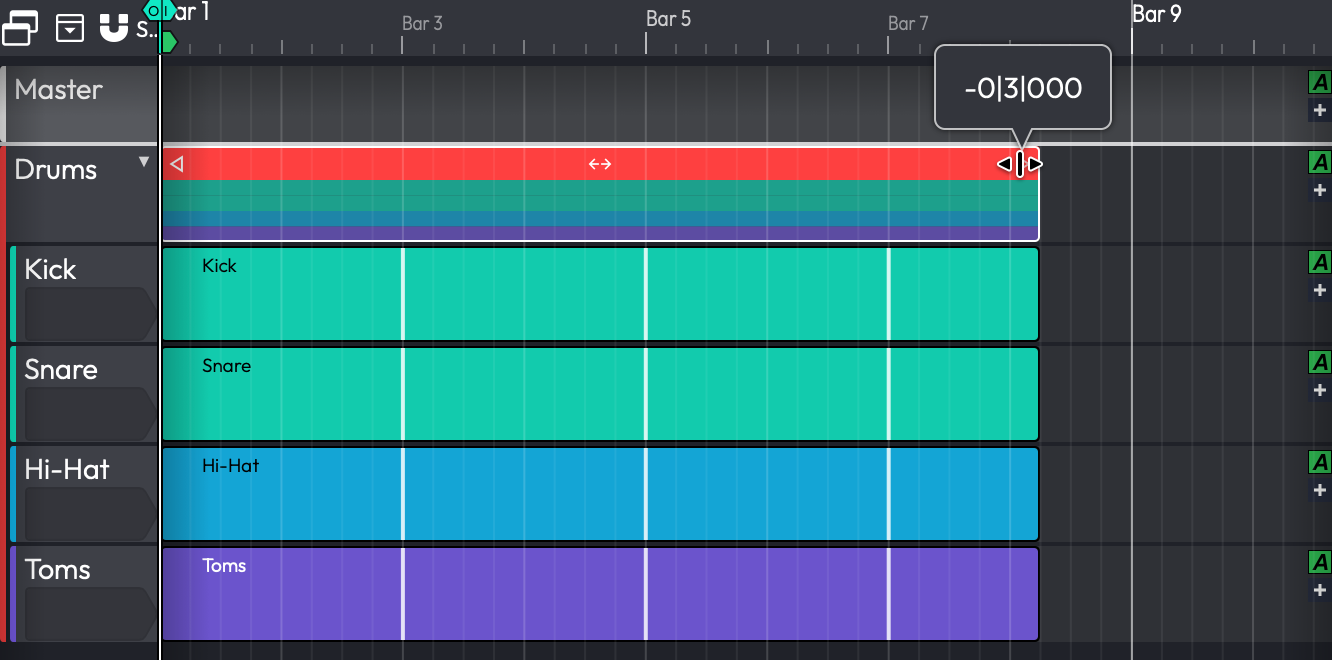
Trimming Using the Folder Track Clip
Deleting
As well as moving and splitting clips, you can delete whole sections of the contained tracks: separate out a section, select it, and press Delete or Backspace.
Automating a Fade within a Folder Track
You can automate the VCA fader to create fade-outs or fade-ins on Folder tracks. Automation covers automation in more detail. To create a fade-out:
- Drag the small "A" icon (the track's automation icon) and drop it on the VCA fader, then choose VCA from the menu that appears. The automation curve for the VCA fader appears on the Folder track.
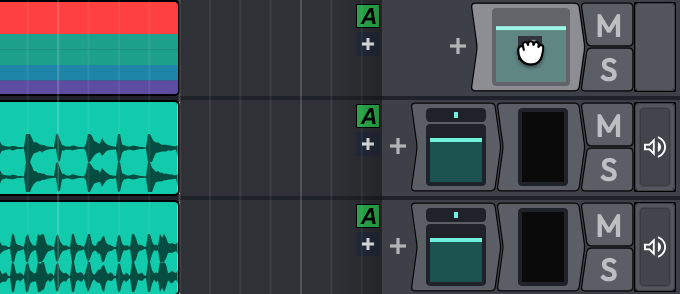
Activate Automation for the VCA
- Double-click the automation curve to add two points: one before and one after the section you want to fade.

Add Automation Points to the VCA Curve
- Drag the last point all the way down to the bottom of the clip to draw your fade-out.
- Drag the curvature point, which appears automatically between the two points you added, to adjust the shape of the fade.

Customising the Fade with Curvature
Drag the points further to adjust the speed of the fade until it sounds right. The automation points snap to the current snap increment; turn Snap off for finer adjustment.
This saves you editing each individual clip to create a fade-out.
Moving On
For a folder that audio passes through, so you can add effects to the whole group, see Submix Tracks.