Layouts PRO
📝 Edition: Waveform Pro. In Waveform Free and OEM the Layout button is hidden and the save/load commands do nothing.
A layout saves the way the Edit window is arranged (which panels are showing, how big they are, and whether they are docked or floating) as a named preset you can recall from a menu. For example, save one layout set up for tracking, and a mixing layout with the Mixer enlarged and the Browser hidden, then switch between them.
Layouts only change the appearance of the window. They never change your audio, MIDI, clips, plugins, or any other project data.
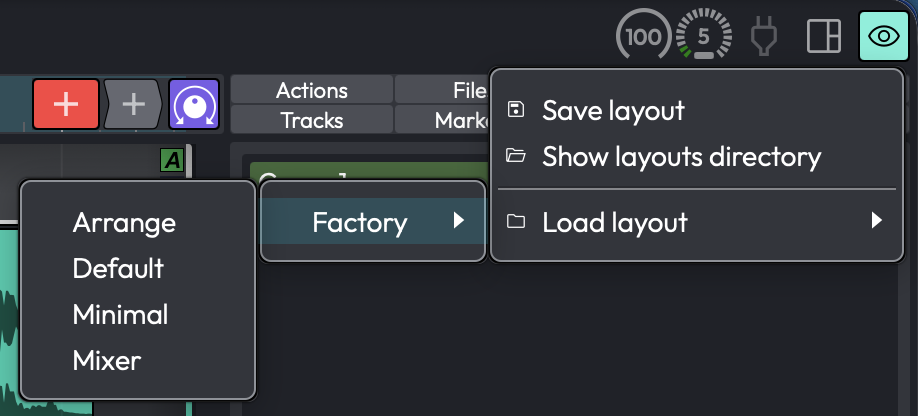
The Layout menu
What a Layout Stores
A layout captures the state of the arrangement window's panels:
- The visibility, size, and docked/floating state of the Overview, Detail Editor, Mixer, Arrangement, and Browser, the global tracks (tempo, arranger, chord), the control/input/plugin strips, and the Quick Actions bar and Quick Actions window.
- The active Browser tab and the marker-track mode.
- The mixer strip layout: track width, big/small meters, and which mixer sections (inputs, modifiers, overview, clips, plugins, outputs, levels) are shown.
📝 Note: A layout doesn't store the arrange zoom level, per-track visibility, track heights, the cursor position, or the open/floating state of the Actions panel. Recalling a layout rearranges the panels; it leaves your view of the tracks themselves as it was.
📝 Note: Layouts are global (application-wide), not saved inside a project. The same set of layouts is available in every Edit, and applying one to the current Edit has no effect on other Edits you have open.
Saving and Loading Layouts
The Layout button (the dashboard icon at the right-hand end of the window's tab bar, next to the eye button, with the tooltip "Load or save the current view as a layout preset") opens this menu:
| Item | What it does |
|---|---|
| Save layout | Saves the current window arrangement as a named layout. |
| Show layouts directory | Opens the folder that holds your layout files in Finder or File Explorer. |
| Load layout | A submenu listing your saved layouts, plus a Factory submenu of the shipped ones. Click one to apply it. |
When you choose Save layout a dialog titled "Save Preset" appears, prompting "Enter a name for the preset:" with the current Edit's name filled in. Type a name and click Save. If a layout with that name already exists, Waveform asks "A preset with this name already exists, do you want to overwrite it?" with Overwrite and Cancel buttons.
💡 Tip: You can also open an Edit straight into a chosen layout. Click the + (New Tab) button, or right-click an Edit's tab. Each Edit listed under Recent Edits and in the project submenus has three buttons: the first opens it in the default view, the second in the Mixer layout, and the eye button lets you pick a layout to open it with.
To use keyboard shortcuts instead, assign the commands "Show the save view state dialog" and "Show the view state menu" in Settings > Keyboard Shortcuts. Neither has a default shortcut.
Factory Layouts
Waveform ships with four ready-made layouts under the Factory submenu of Load layout:
- Default
- Arrange
- Mixer
- Minimal
If any of them is missing, Waveform reinstalls it the next time you launch, but it never overwrites an existing factory file.
Managing Layouts
There is no in-app way to rename or delete a layout. Use Show layouts directory to open the folder of
saved layouts, then rename or delete the .view files in Finder or File Explorer.
Any subfolders you create become submenus in the Load layout list, which is handy for keeping sets of
layouts organised.