Clip Effects
Using Plugins and Built-in Effects Plugins cover effects plugins in general. This chapter shows how to put plugins on individual Audio clips.
Inserting Plugins on Clips
To insert a plugin on an Audio clip, drag the plugin from the Browser or the plugin object, and drop it onto the Audio clip. The plugin's thumbnail appears in the lower right corner of the clip. You can add up to 10 plugins to make a chain of effects, all working on that one clip.
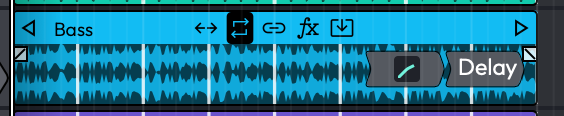
Plugins Using Clip Effects
📝 Note: Clip effects work with Audio clips, but not MIDI clips or Step clips.
📝 Note: For offline processing that renders into the clip, see Clip Layer Effects.
Otherwise, clip plugins work much like plugins in the mixer. Select a plugin and press F to enable or disable it, or use the Enabled button in the Actions panel.
For third-party plugins, clicking or double-clicking the plugin opens its user interface.
💡 Tip: How plugins open depends on a setting in Settings > General: under Plugin Windows, Open plugin windows by can be set to either Single-clicking or Double-clicking.
Removing Clip Plugins
To remove a plugin, click it and press Delete or Backspace. To remove several at once, hold Cmd / Ctrl while you click them, then press Delete.
Creative Uses
Clip effects let you put an effect on just part of a track, even a single word or phrase. Without them, you'd need to move that piece of the clip to another track to give it a different effect. This is useful for an echo throw, where you put an echo on a single word, or for processing one phrase of a vocal line with a lo-fi effect. Separate the phrase or word into its own clip, then apply the effect to that short clip only.
Echo Throw Example
An echo throw puts an echo on one word, usually the last word of a phrase:
- Separate the final word from the rest of the phrase: position the cursor where you want the split and press the slash (/) key.
- Drag the Delay plugin onto the new clip.
- Set the Delay time so the echoes fall in a musically useful way, for example on eighth or quarter notes (turn on Sync to pick note values). Add a little Feedback so the echoes die away over time.
- Play back and adjust the Delay settings until the echo throw sounds right.
📝 Note: A clip's plugins only sound while the clip plays, so the echoes stop at the end of the clip. To let them ring out, drag the clip's end out over the silence after the word.
The same technique works for lo-fi effects. Apply high-pass and low-pass filters to cut the highs and lows of a phrase, or add chorus to a few words in a vocal line.
Moving On
To process a group of tracks together instead, see Folder Tracks and Submix Tracks.