Importing and Exchanging Projects
This chapter covers the ways you can move whole projects in and out of Waveform: exchanging Edits with other DAWs using the open DAWproject format, importing older Mackie and RADAR hard-disk-recorder projects, and working with Waveform's own project archives. You'll find most of these in the File menu, grouped into the File > Import Other and File > Export Other submenus.
Exchanging Projects With Other DAWs (DAWproject)
DAWproject is an open, cross-DAW file format. It lets you hand a project to (or receive one from) other DAWs that support it (Bitwig Studio, Studio One, and others) without flattening everything to audio stems. Tracks, clips, and a good deal of mixer state travel with the file.
Importing a DAWproject File
To bring a DAWproject into Waveform, select File > Import Other > Import a
DAWproject file... and choose a .dawproject file. Waveform asks you to
confirm with the message "This will create a new edit from the DAWproject
file and open it in a new tab." Click Import and the new Edit opens in
its own tab.
There are no options to set. Waveform extracts any embedded audio into the project's media folder automatically, so the imported Edit is self-contained.
📝 Note: Importing a DAWproject always creates a new Edit in a new tab. It never merges into the Edit you're currently working on.
Exporting a DAWproject File
To send your Edit to another DAW, select File > Export Other > Export as
DAWproject file... and choose where to save the .dawproject file. The
file is written immediately, and there are no options to set.
By default the export is self-contained: the audio and your plugin state
are embedded in the single .dawproject file, so you can hand off just
that one file.
What Does and Doesn't Travel
A DAWproject carries a lot, but not everything. Check the limits before you rely on it for an important hand-off.
What comes across:
- Tracks of every kind: audio, MIDI, Folder and Marker tracks
- Track name, colour, mute, and solo state
- Track volume and pan
- The tempo and time signature, including their automation
- Markers
- Audio and MIDI clips, including MIDI notes and controller (CC) data
- VST2, VST3, and AU plugin state
- Scenes and project metadata
What does not come across:
- Automation curves on tracks and plugins (the biggest gap: volume, pan, and plugin-parameter moves are not transferred, so bounce automation-heavy tracks to audio first if you need them to translate)
- Sends and bus routing
- Step clips and Edit clips (these are Waveform-specific)
- Clip pitch-shifting and time-stretch settings
- Groove and quantise settings
⚠️ Warning: A plugin only loads on the far side if that exact plugin is installed on the receiving machine. If it isn't, the plugin is silently dropped from the track. Make sure both ends have the same plugins installed before you exchange a mix you care about.
Importing Legacy Hard-Disk-Recorder Projects
Waveform can read projects from two older hard-disk recorders. Both of these import into the current Edit rather than creating a new one, so start from a fresh, empty Edit to keep things tidy.
Mackie HDR Projects
Select File > Import Other > Import a Mackie .prj project file... and pick
the .prj file. Waveform brings in the track names, mute states, clip
positions, and any virtual tracks that actually contain material (empty
ones are skipped), then zooms the Edit to fit so you can see everything at
once.
The audio files need to sit alongside the .prj file for the references
to resolve. If Waveform can't read the project, you'll see "Couldn't
parse the file correctly."
RADAR Projects
Select File > Import Other > Import a RADAR project... and choose the project file (there's no extension filter, so you can pick the file directly). Waveform imports the song name, sample rate, up to 64 track names, and the audio regions, then zooms to fit.
RADAR projects expect their audio in an "Audio Files" folder two levels above the file you select, so keep the original folder structure intact when you copy the project across.
Working With Project Archives
A Waveform archive is a single .zip file that bundles an Edit together
with all of the media it references. It's the best way to back up a
finished project or send a complete Edit to someone else, because nothing
gets left behind.
Importing an Archive
You can unpack an archive into a project in a few ways:
- On the Projects tab, click a project's Import Material button and choose Unpack an archive and add it to this project...
- Right-click in the project list and choose Unpack an archive into this project...
- Drag an archive file straight onto the Waveform window
The file picker accepts both .trkarch and .zip archives. The contents
are merged into the target project.
📝 Note: If the project is read-only you'll see "Can't import into this project, because it's read-only" and nothing happens. Importing into a folder-based project does nothing either, because archives merge into a normal Waveform project.
Creating an Archive
To create an archive, select File > Create an archive of this edit.... You can also choose Share an archive of this Edit from the media list's Share menu, click a project's Create Archive... button, or click an Edit's Archive Edit button on the Projects tab. The Create Archive dialog has two controls.
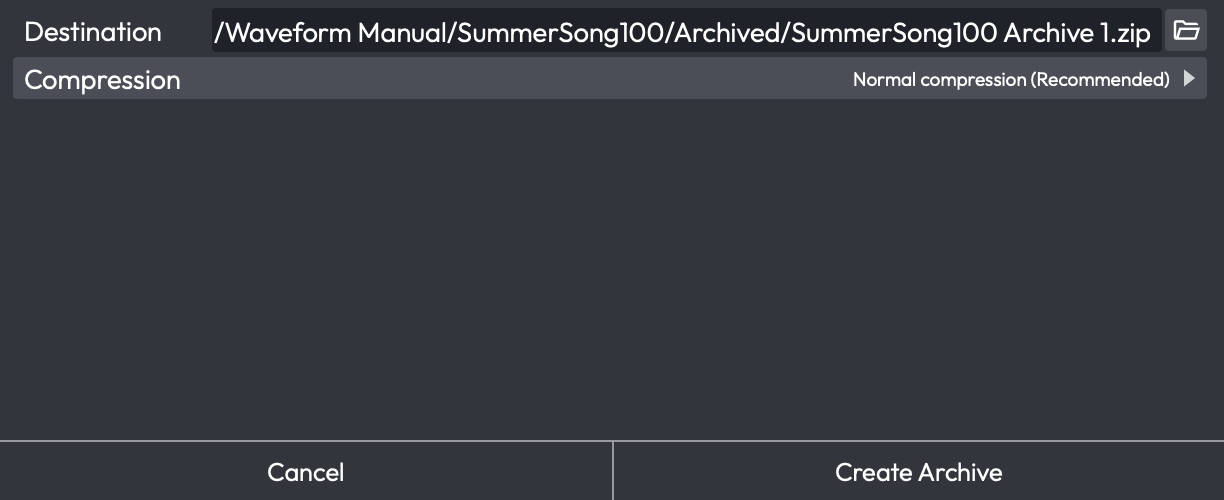
The Create Archive dialog
Destination file: Where the .zip is saved. Waveform suggests a name
based on the Edit, ending in Archive 1.zip, and bumps the number
automatically if a file already exists. It remembers the last folder you
used. (Default: the project's archive media folder, or your last export
folder.)
Compression (Choices: No compression, Fast compression, Normal compression (Recommended), Best compression): How hard Waveform works to shrink the file. No compression is fastest and largest; Best compression is slowest and smallest. (Default: Normal compression (Recommended))
When you confirm, Waveform consolidates every piece of referenced media
into a standard .zip, showing a progress bar you can cancel. If a file
of the same name already exists, you'll be asked before it's overwritten.
Moving On
For exporting finished audio rather than whole projects, see Mixing Down and Rendering and Stems. For more on how projects and their media are organised, see The Browser and Creating a Project.